
Sale
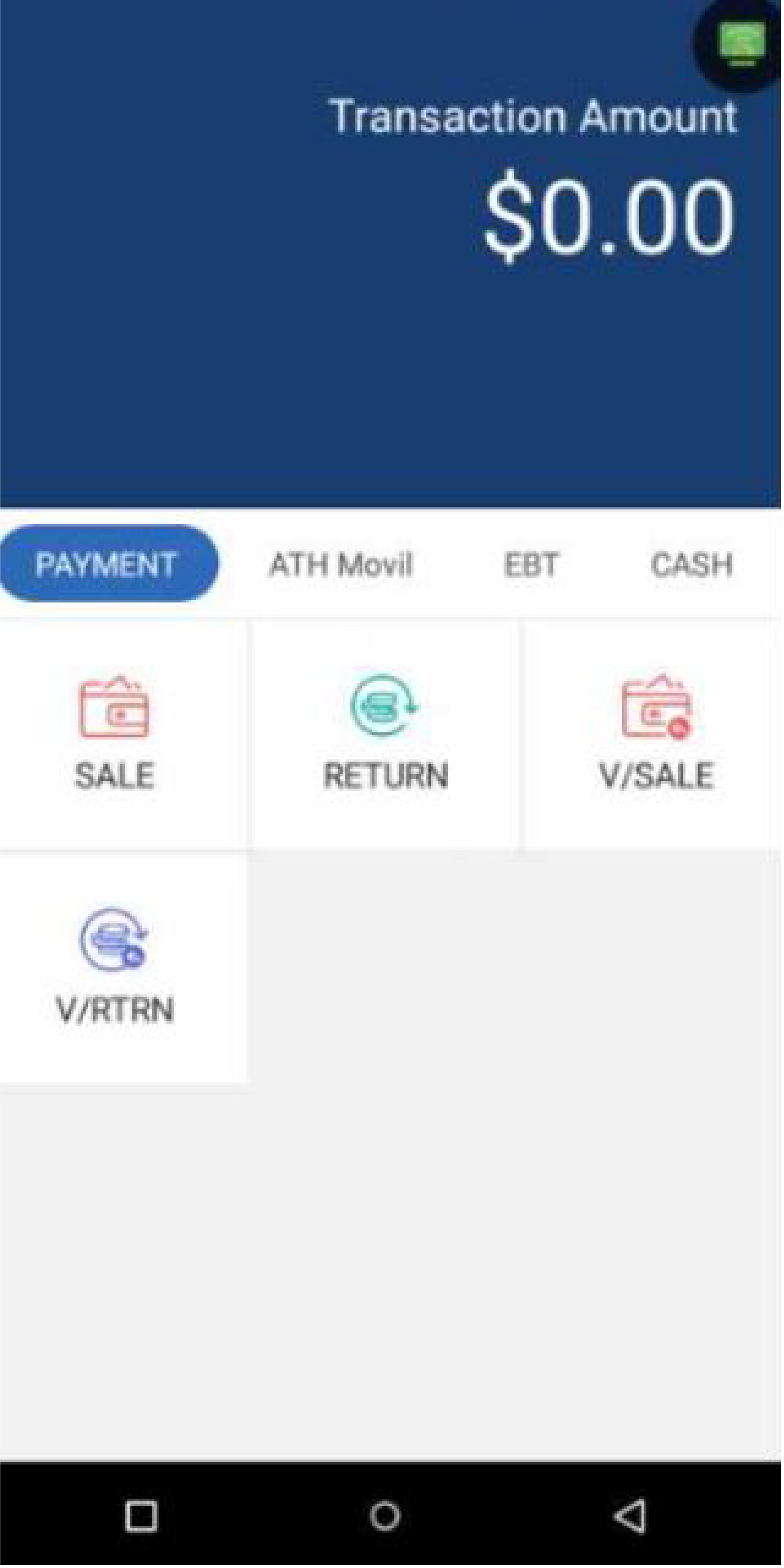
Card TransactionsIn the Payment screen, press Sale.
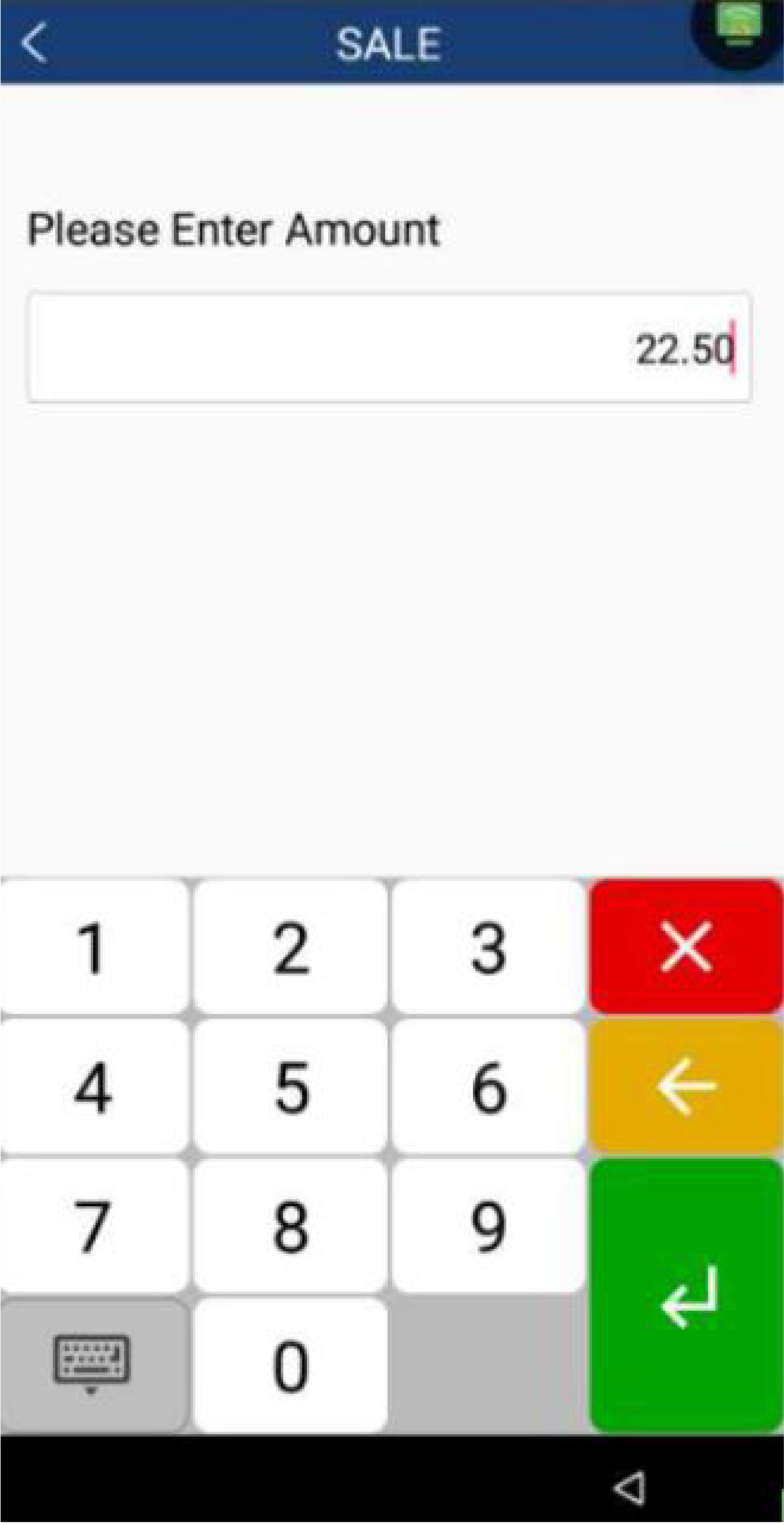
Enter the total sale amount with taxes, if applicable. Depending on your setup:
- If taxes are applied automatically, enter the full amount, without taxes. Use Amount 1 for State Tax and Amount 2 for Reduced State Tax.
- If you're using manual taxes, first enter the subtotal, then enter the tax amounts separately.
To continue, press Enter.
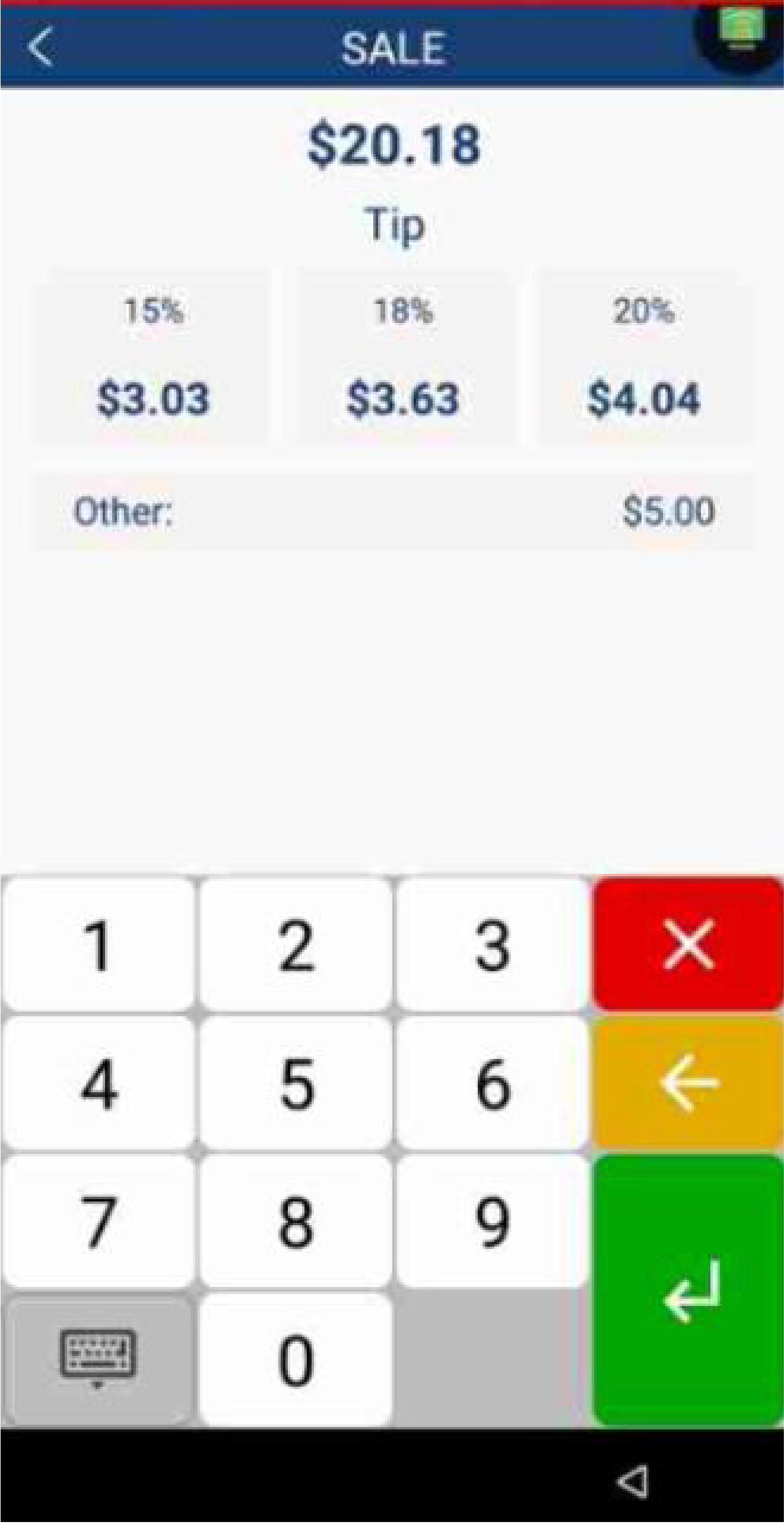
To add a tip, you can choose a suggested percentage, enter a custom tip amount, or skip adding a tip. To continue, press Enter.
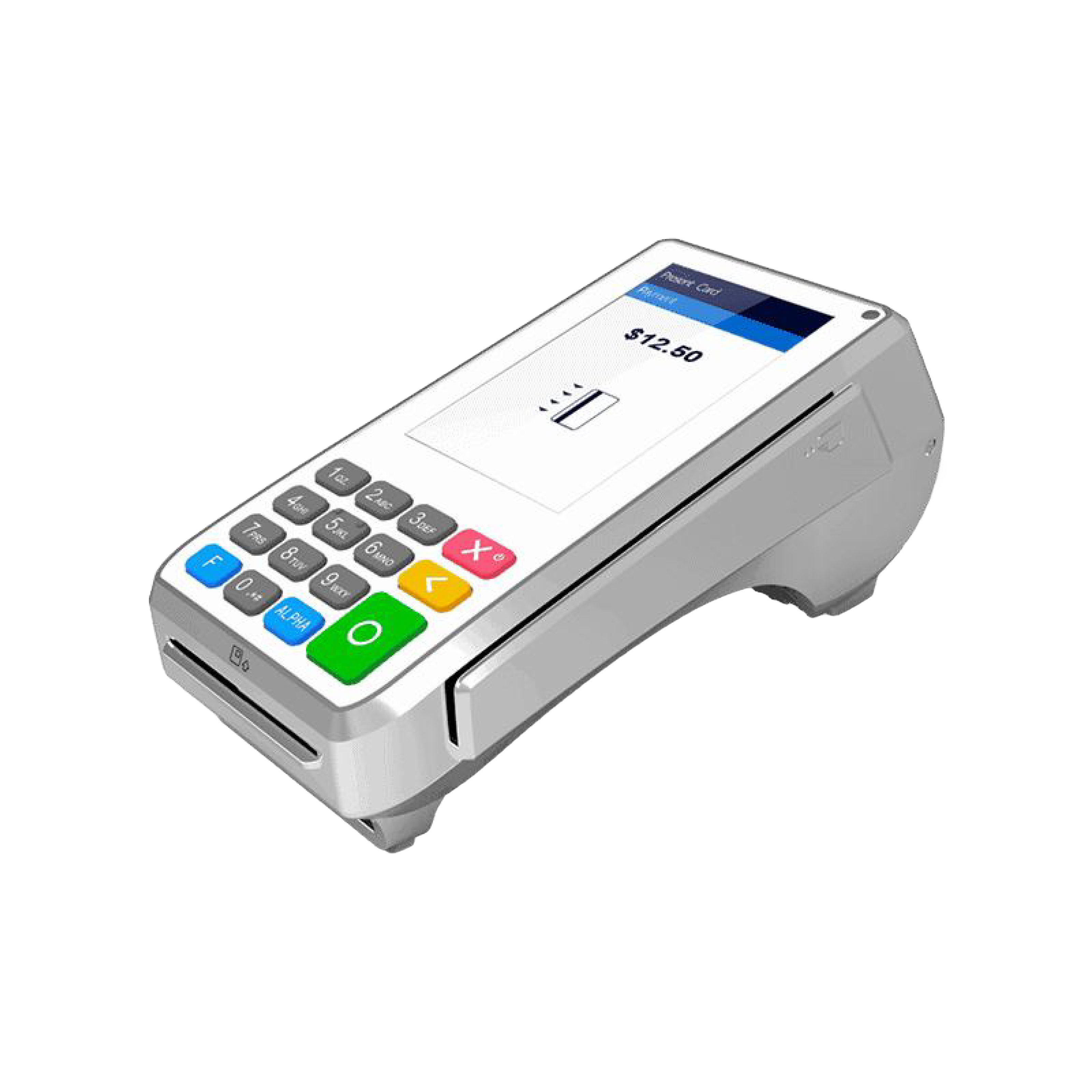
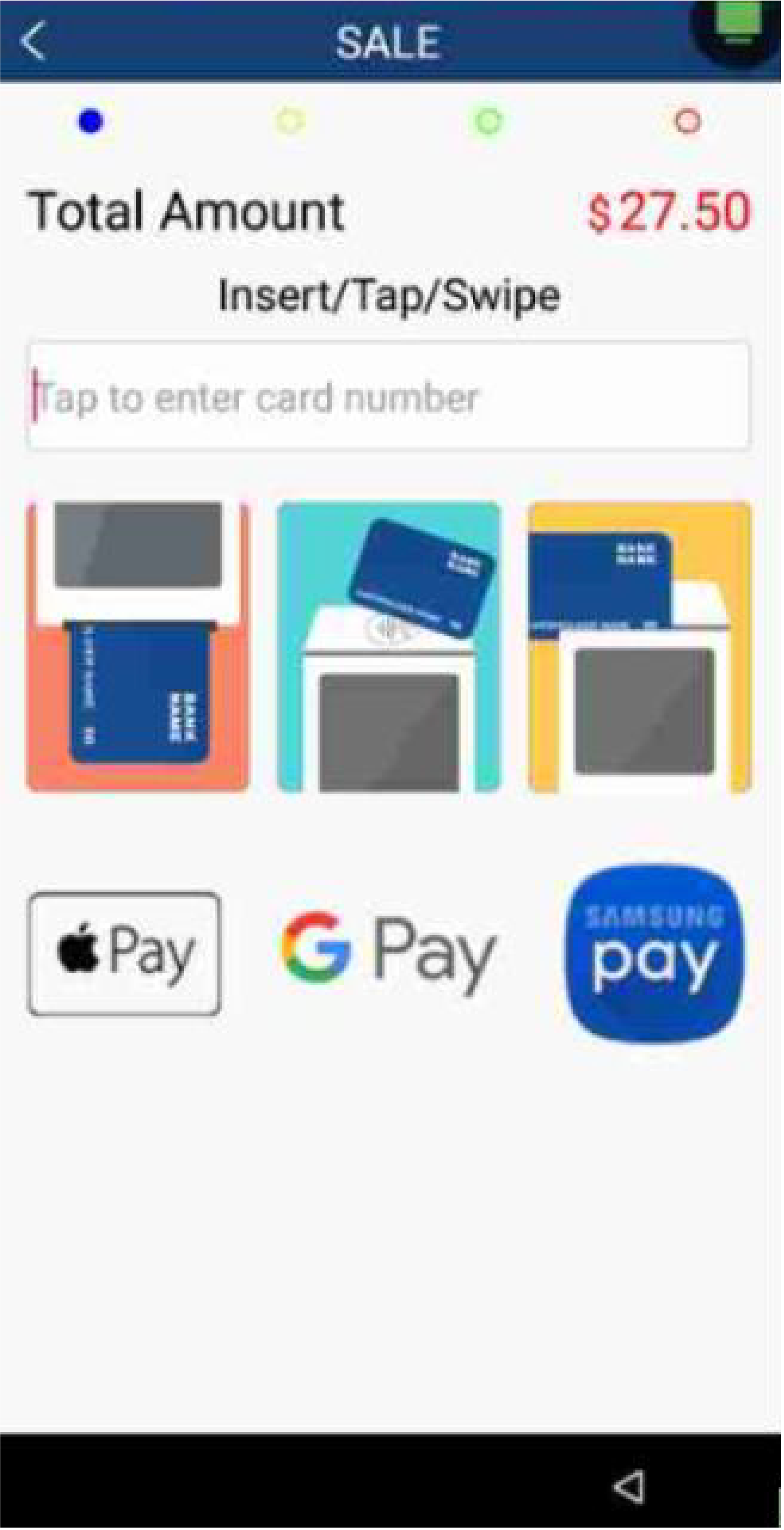
Customers can Insert, Tap, or Swipe their cards to pay. If you have Cashback enabled, choose suggested amount, enter a custom amount or press No Thanks to skip.
For manual card entry, enter the card number, expiration date and security code. The terminal will display a signature screen for the customer. After 30 seconds, it will automatically proceed. Once the customer has signed, press Enter to continue.
Once the payment is processed, the terminal will display if the transaction was Approved or Declined.
If the payment is approved, choose a receipt option for the customer (print, SMS, or no receipt).
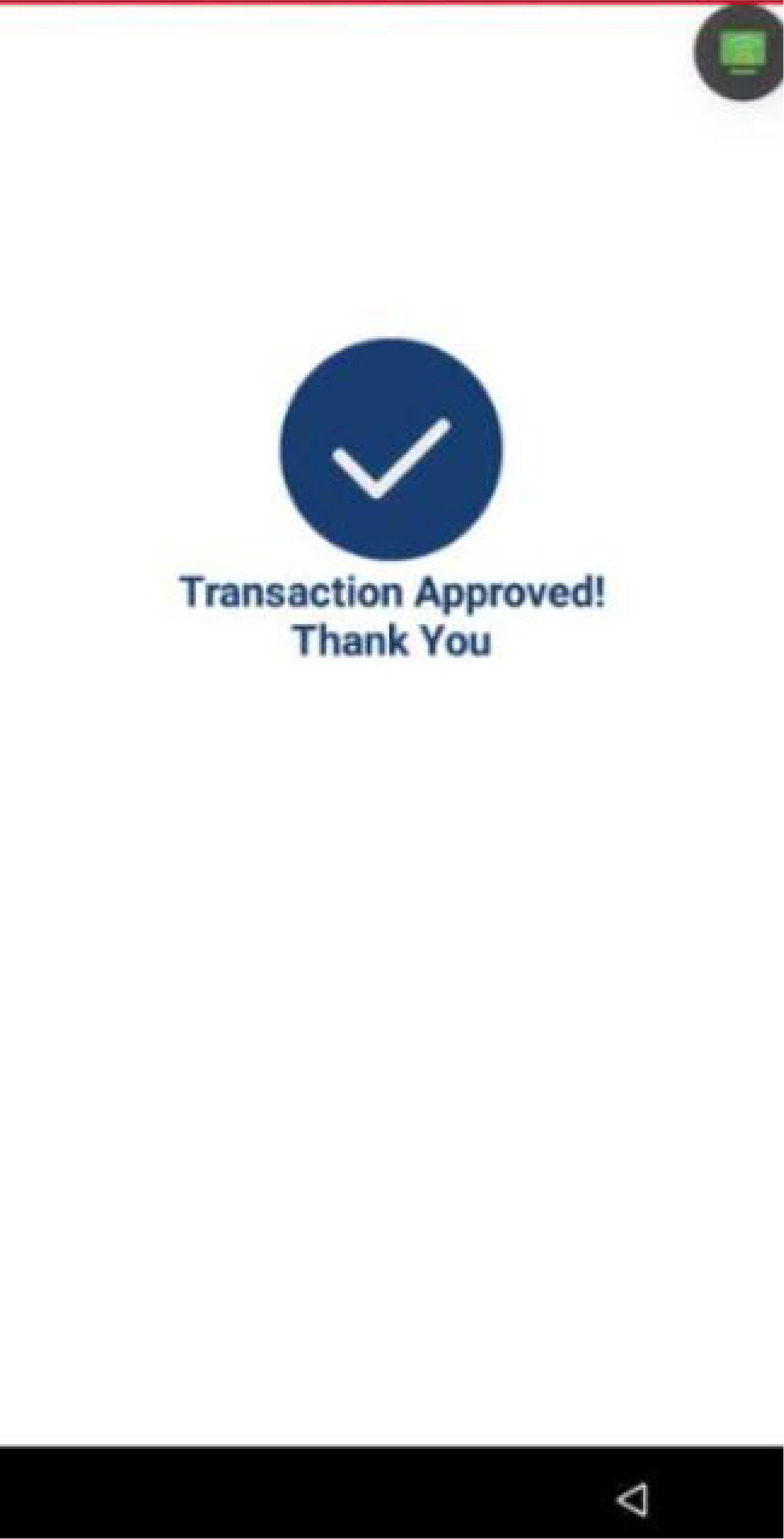
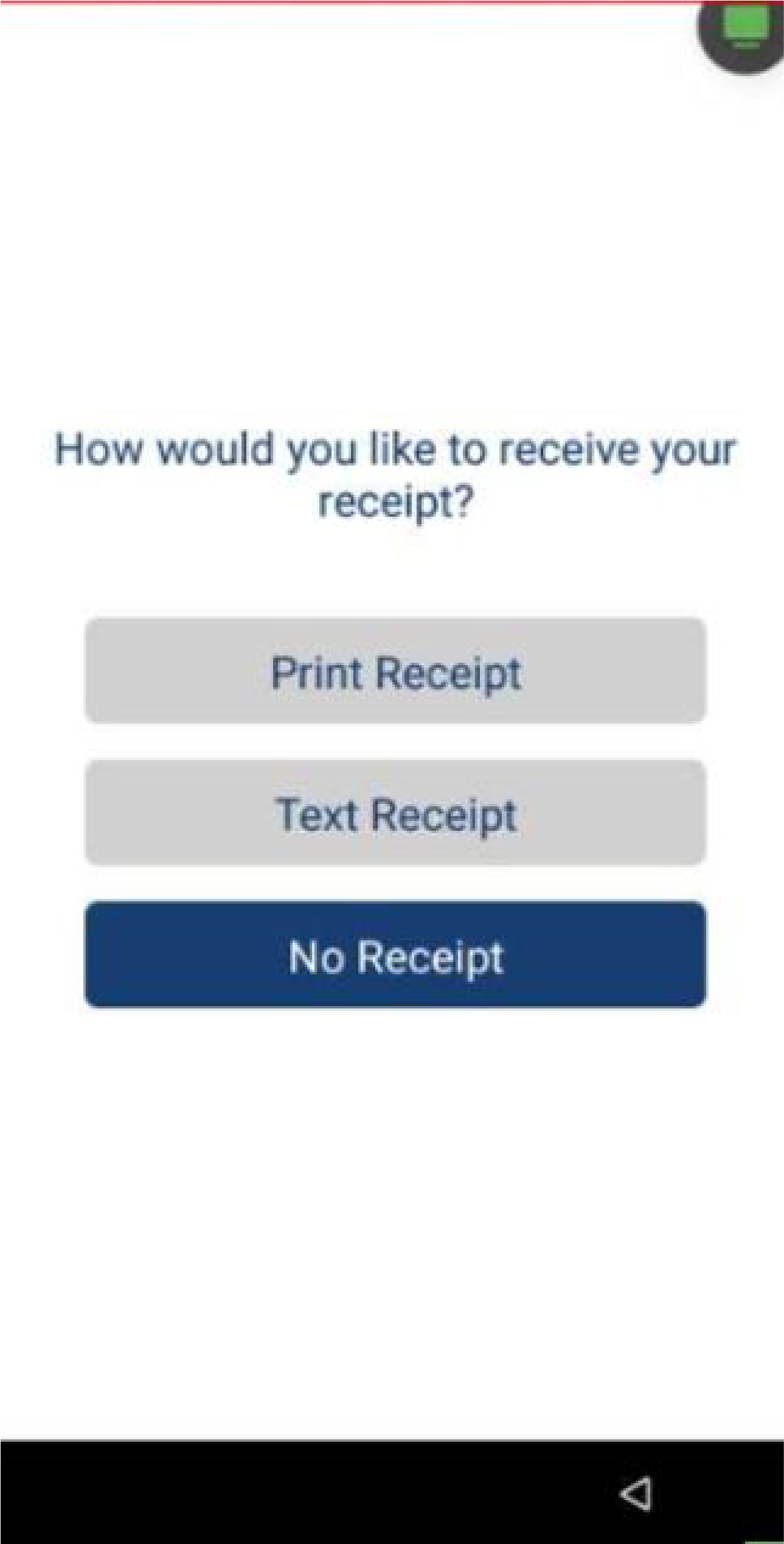

Sale with ATH Móvil
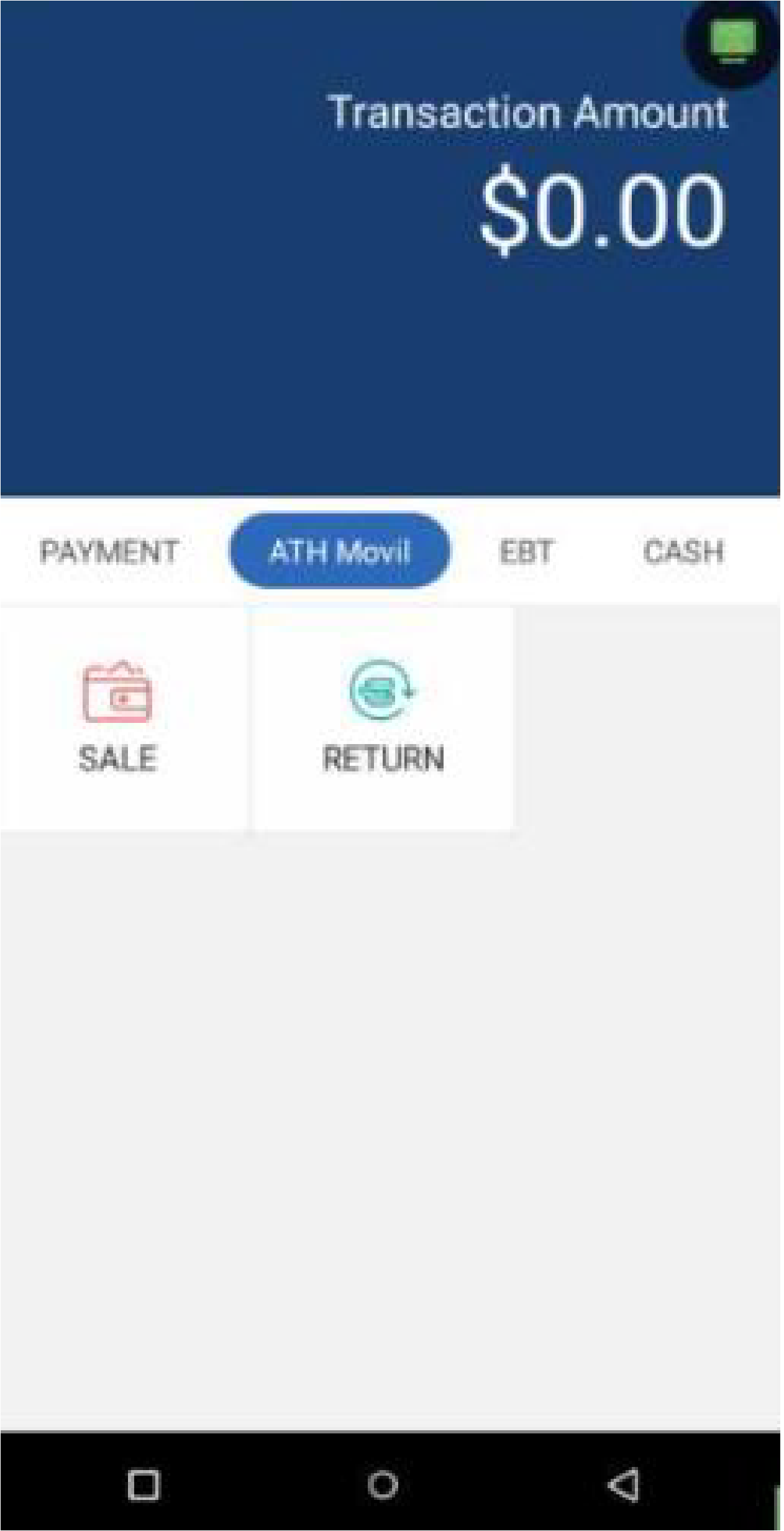
ATH Móvil TransactionsIn the ATH Móvil screen, press Sale.
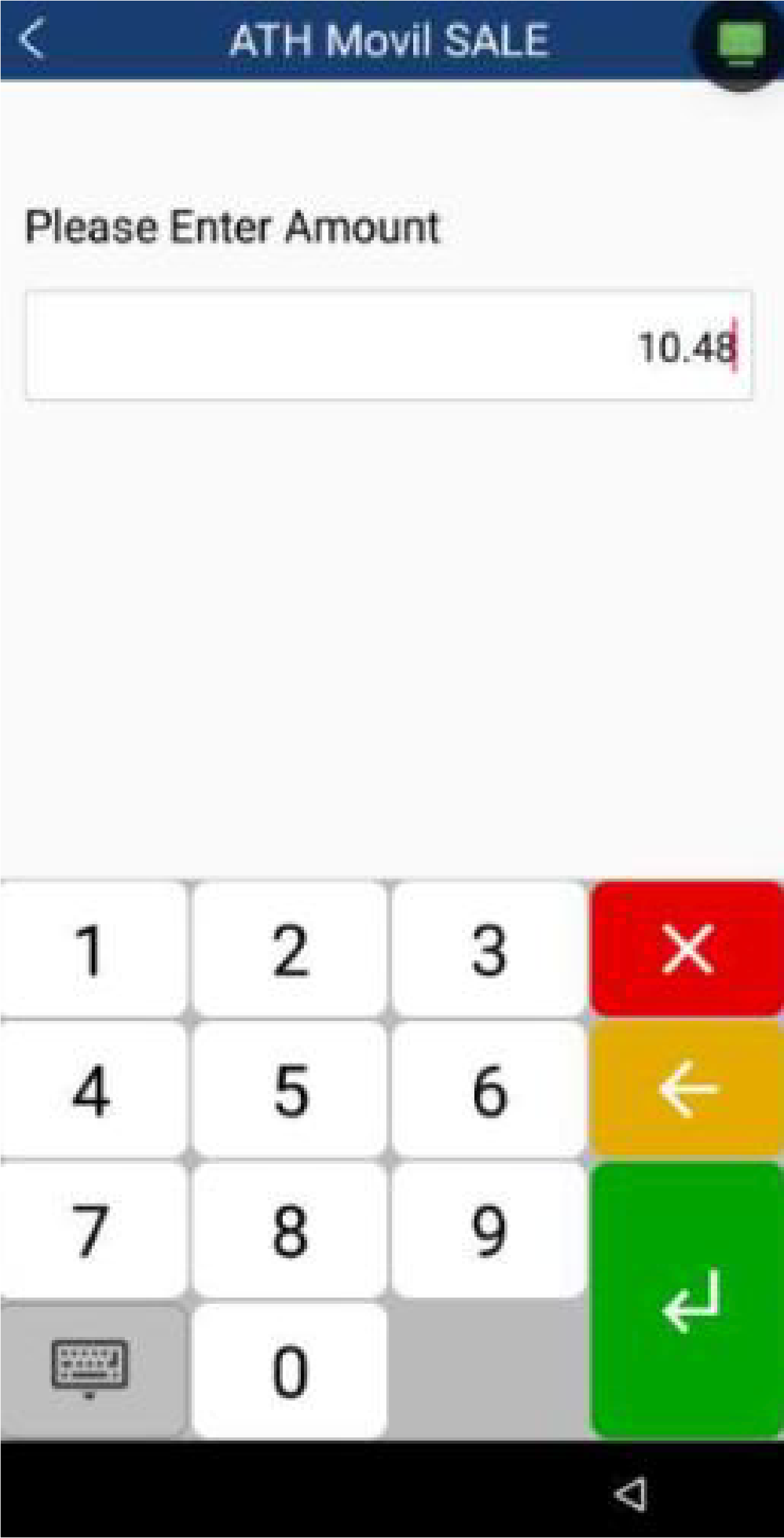
Enter the total sale amount with taxes, if applicable. Depending on your setup:
- If taxes are applied automatically, enter the full amount, without taxes. Use Amount 1 for State Tax and Amount 2 for Reduced State Tax.
- If you're using manual taxes, first enter the subtotal, then enter the tax amounts separately.
To continue, press Enter.
To add a tip, you can choose a suggested percentage, enter a custom tip amount, or skip adding a tip. The customer can also add a tip later through their wallet in ATH Móvil. To continue, press Enter.
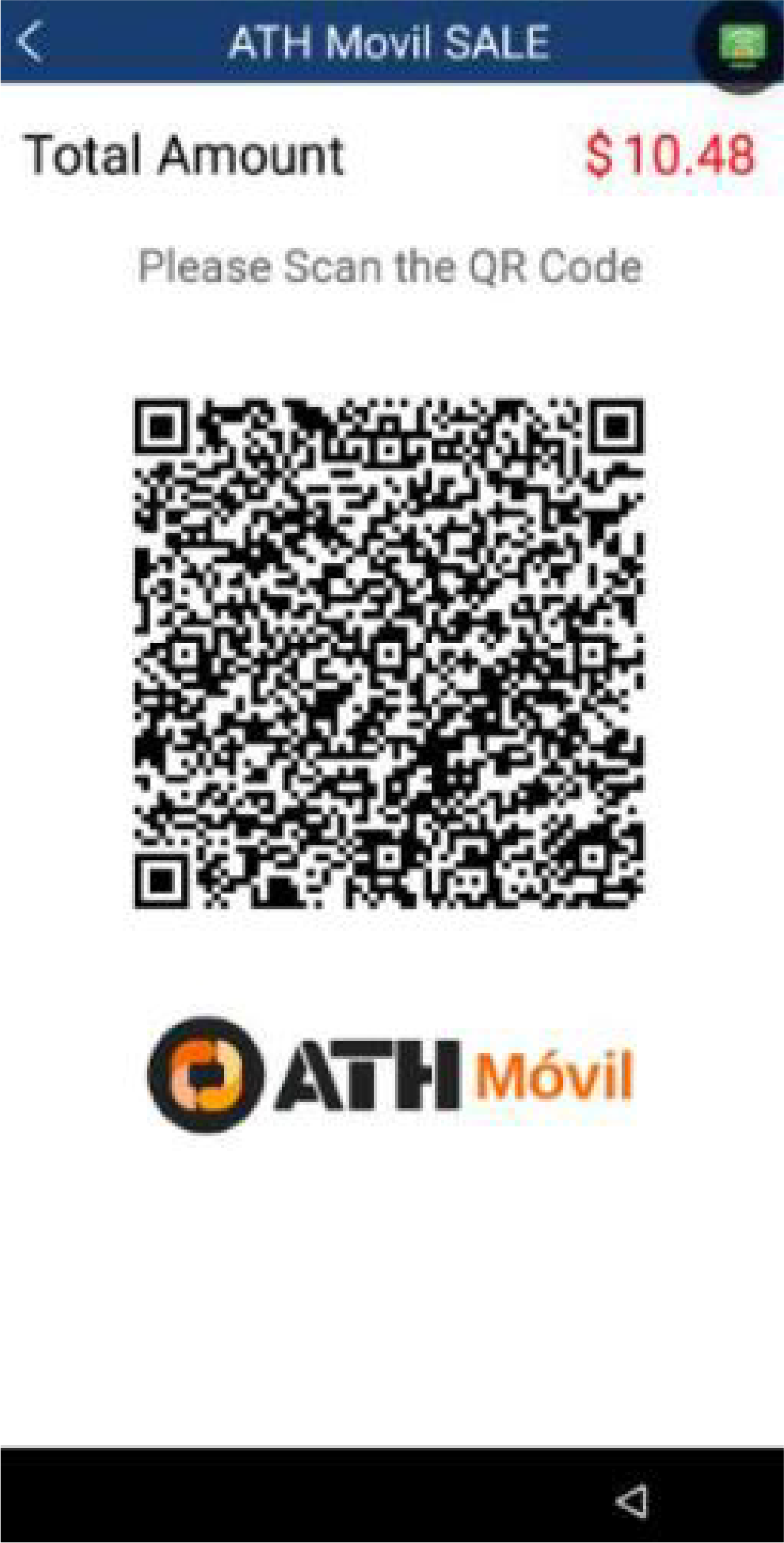
The terminal will display the ATH Móvil QR code. Allow the customer to scan the code with the ATH Móvil app to complete the sale.
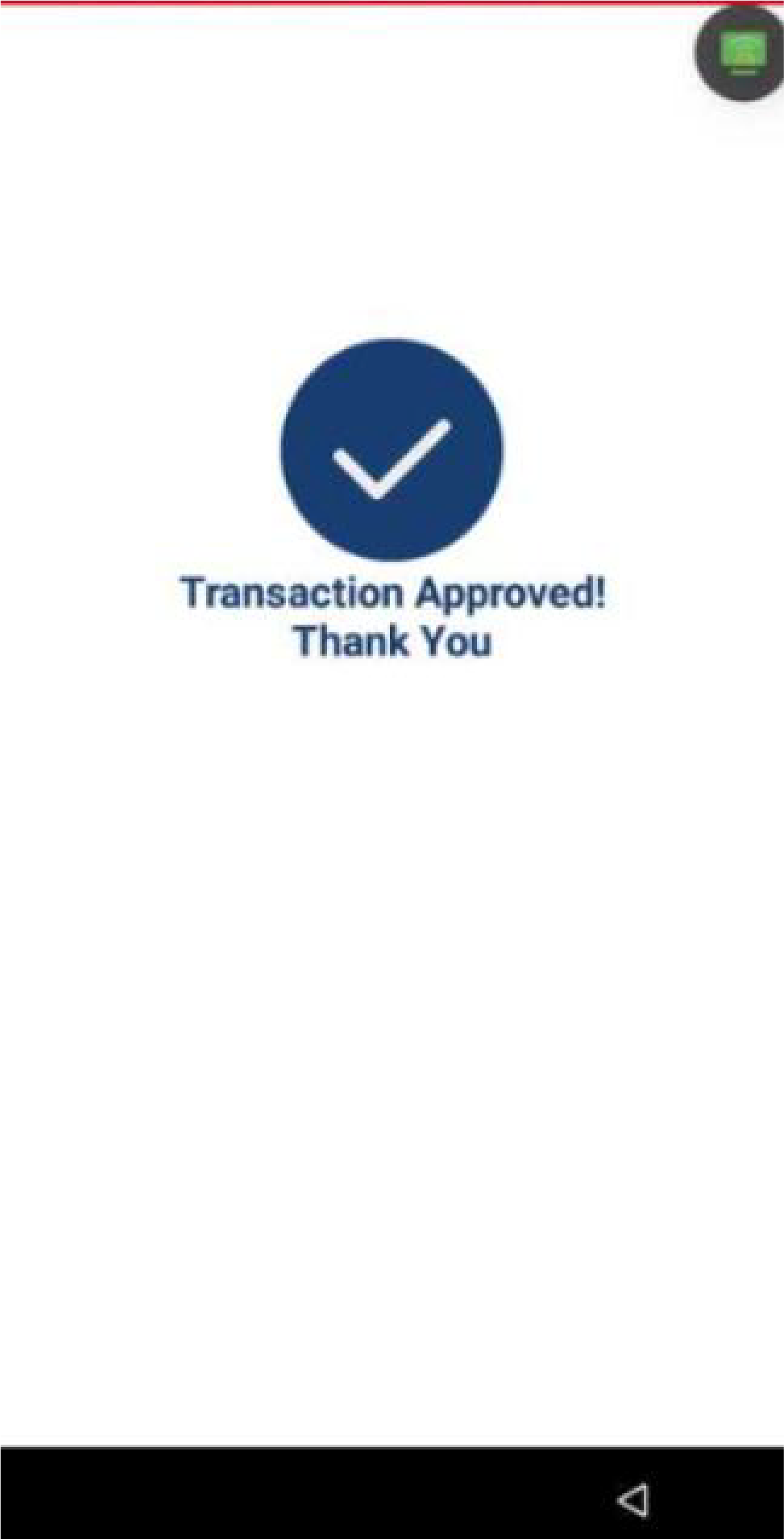
Once the payment is processed, the terminal will display if the transaction was Approved or Declined.
If the payment is approved, choose a receipt option for the customer (print, SMS, or no receipt).

Refund
Depending on the original type of transaction:
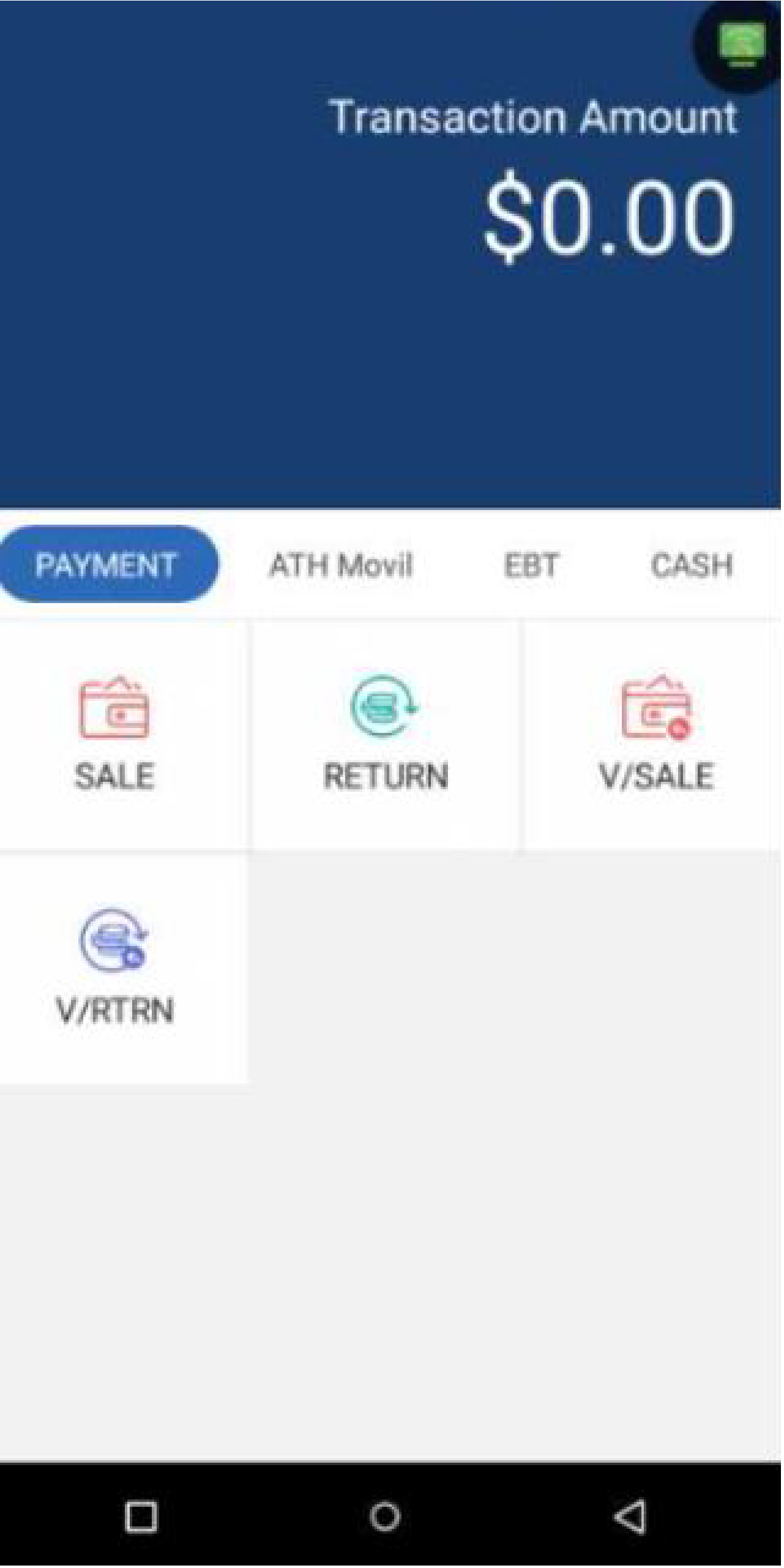
- For Credit Card refunds, go to the Payment screen.
- For ATH Móvil refunds, go to the ATH Móvil screen.
- For EBT refunds, go to the EBT screen.
- For Cash refunds, go to the Cash screen.
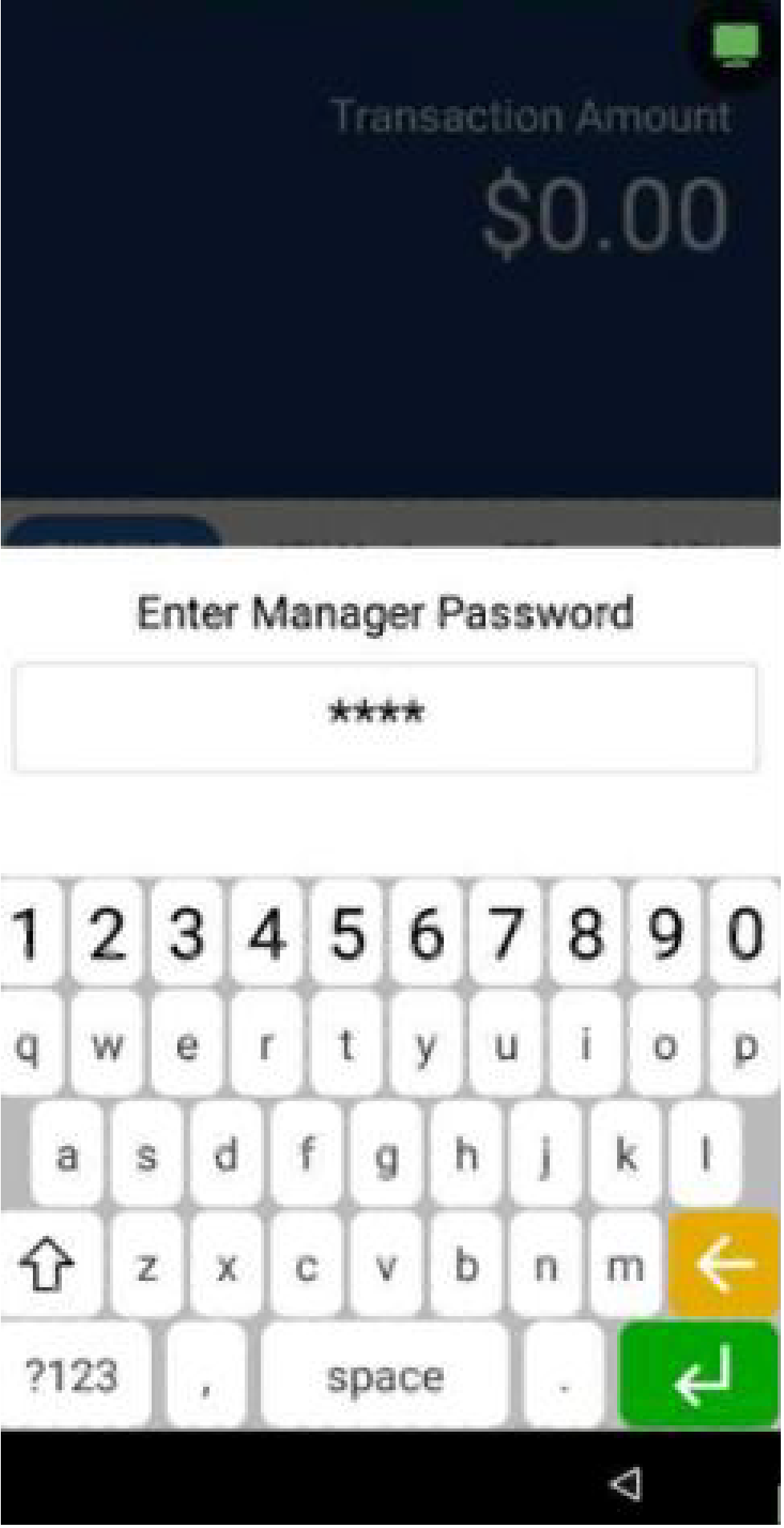
Press Return and enter the Manager Password to continue.
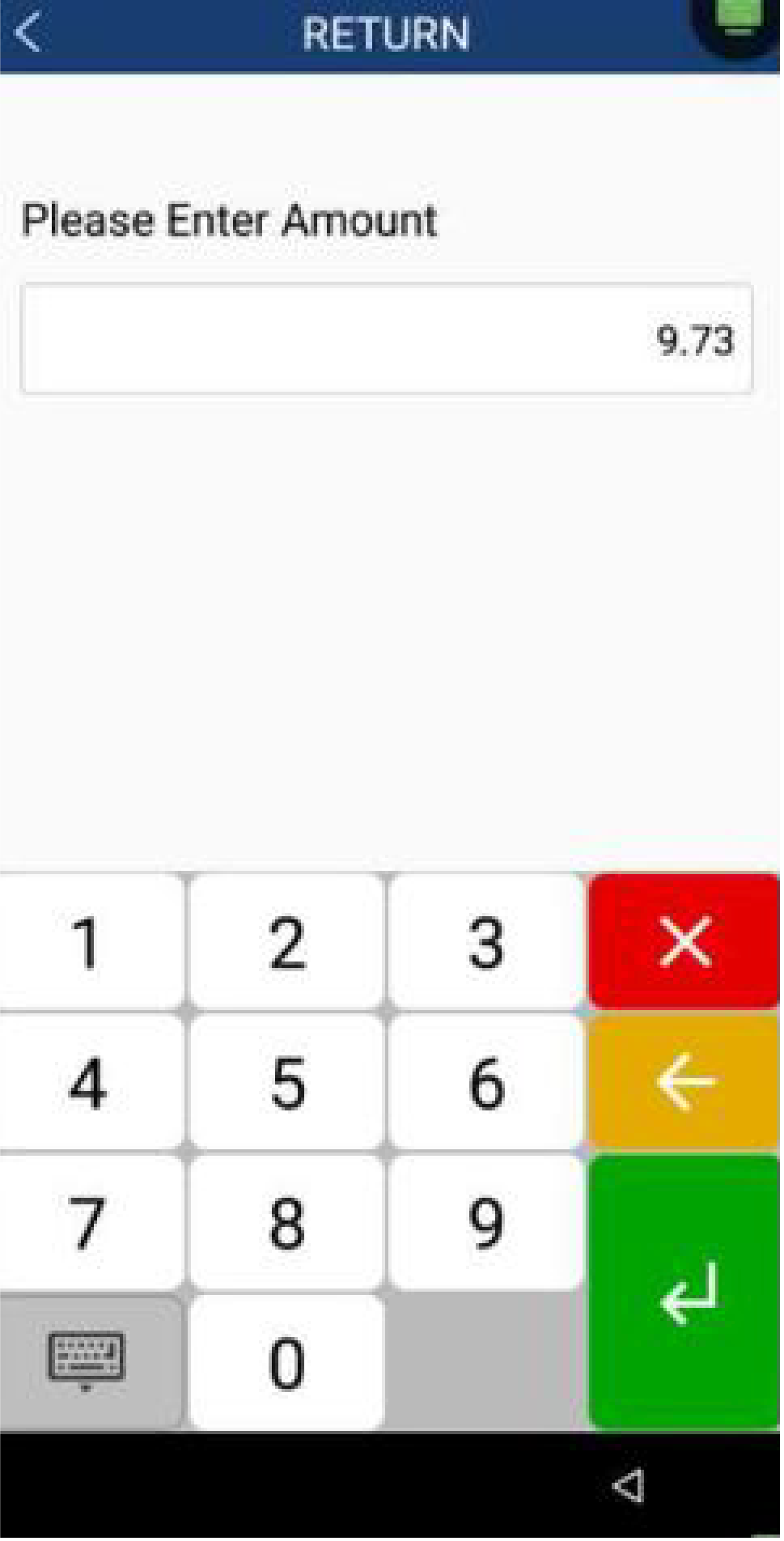
Enter the total sale amount with taxes and tip, if applicable. Depending on your setup:
- If taxes are applied automatically, enter the full amount, without taxes. When applicable, use Amount 1 for State Tax and Amount 2 for Reduced State Tax.
- If you're using manual taxes, first enter the subtotal, then enter the tax amounts separately.
To continue, press Enter. For ATH Móvil transactions, enter the ATHM Trans ID.
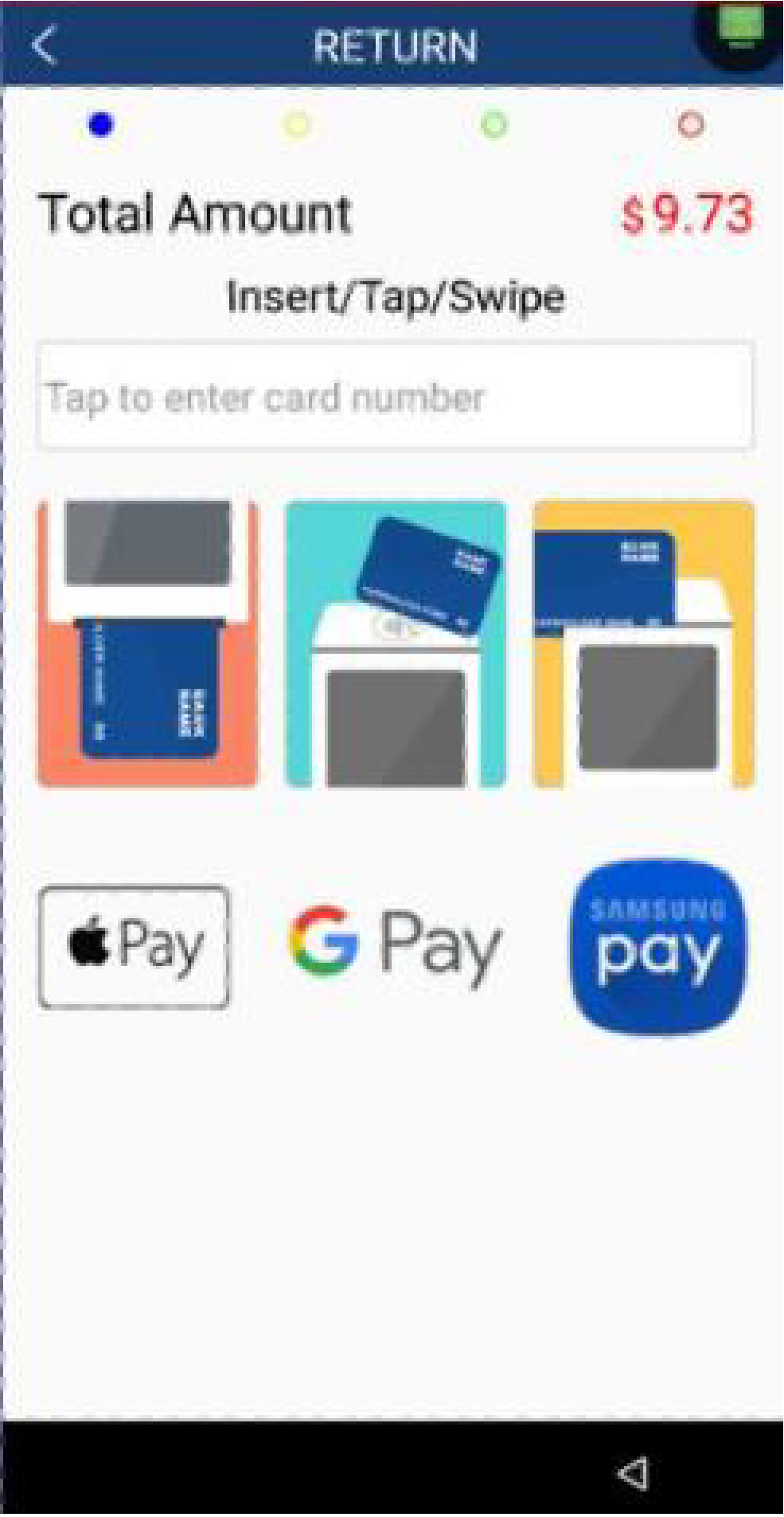
Customers can Insert, Tap, or Swipe their cards to receive their refund. For ATH Móvil refunds, allow the customer to scan the ATH Móvil QR code.
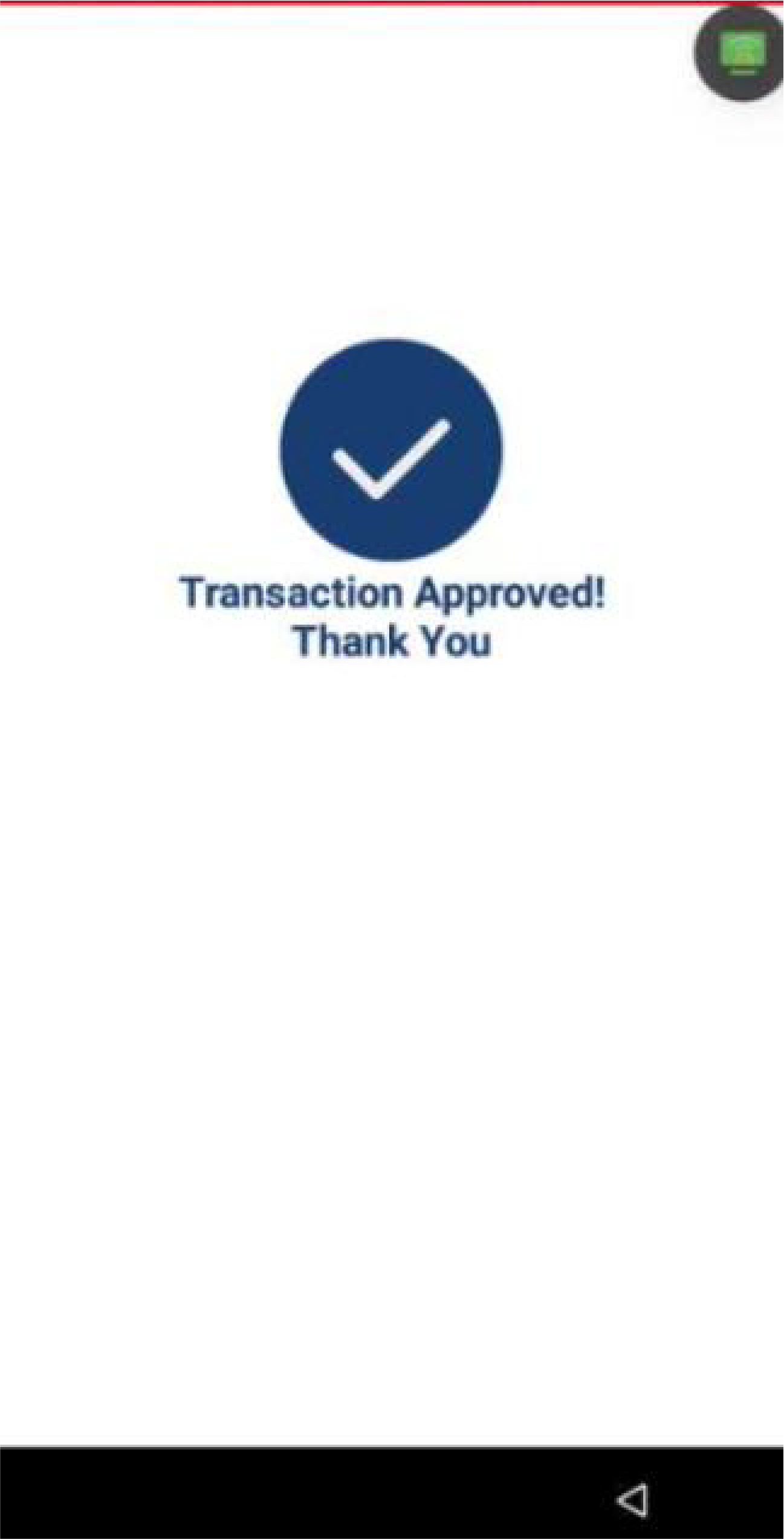
Once the payment is processed, the terminal will display if the transaction was Approved or Declined.
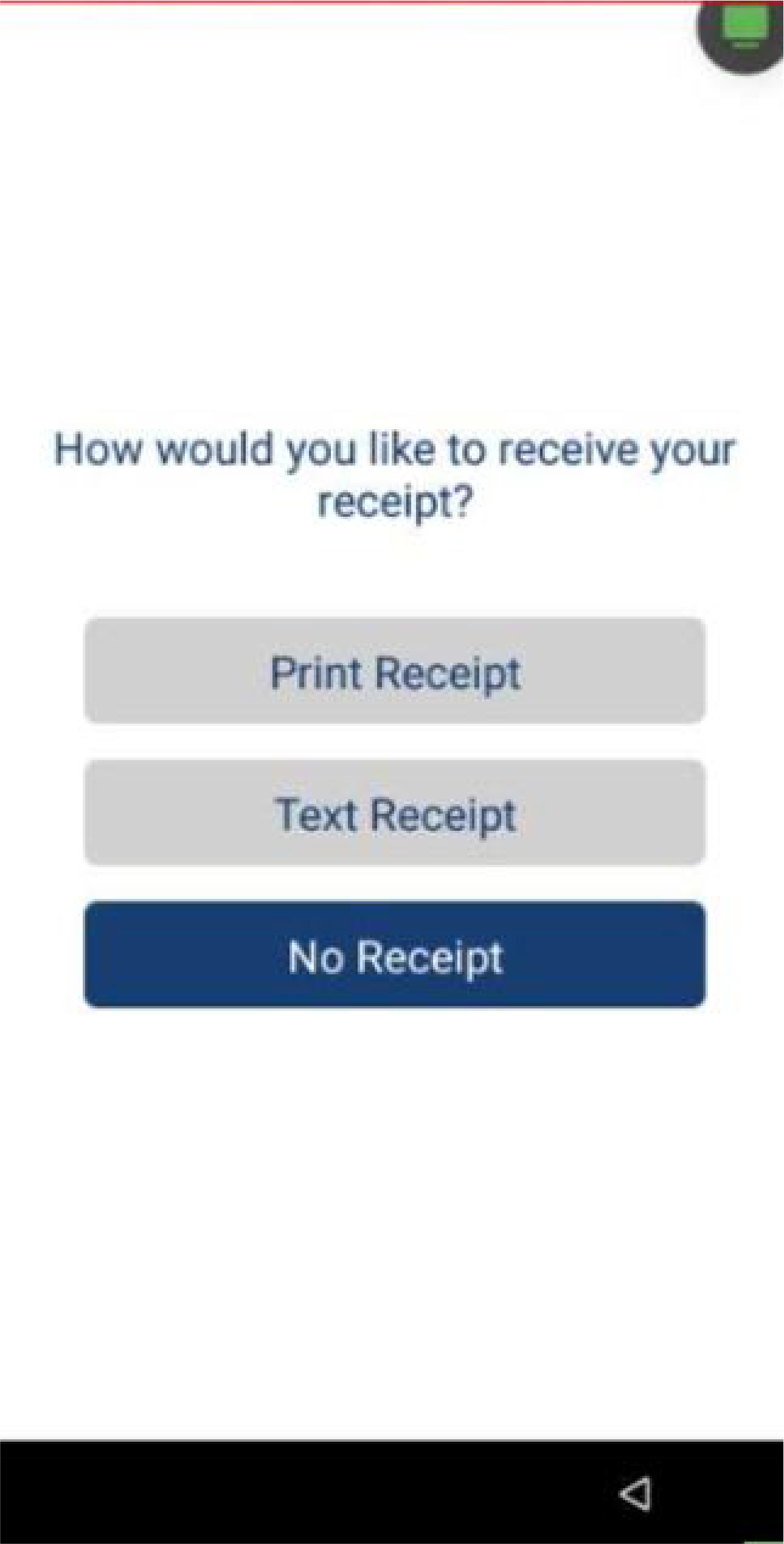
If the refund is approved, choose a receipt option for the customer (print, SMS, or no receipt).

Void
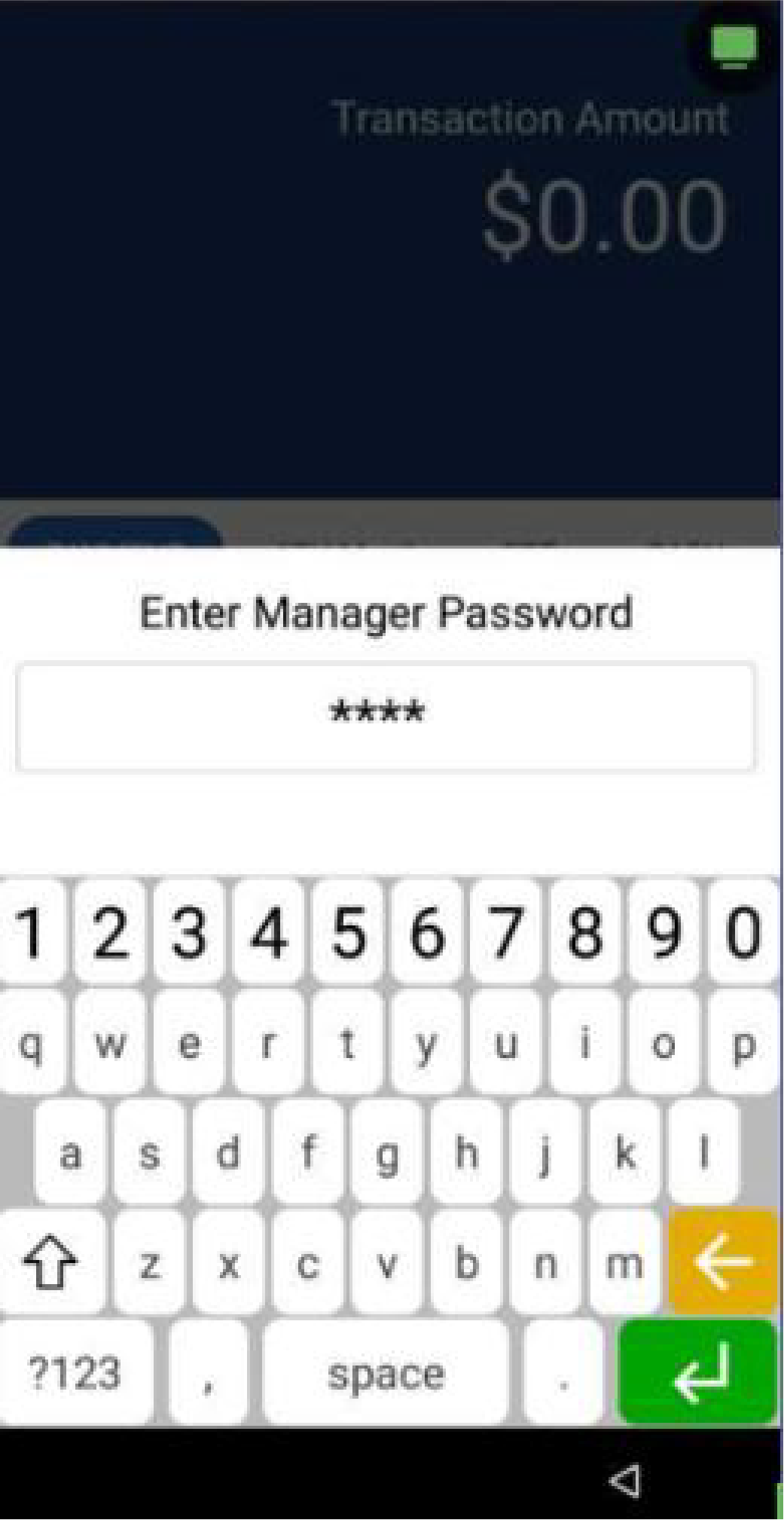
In the Payment screen, press V/Sale. Enter the Manager Password to continue.
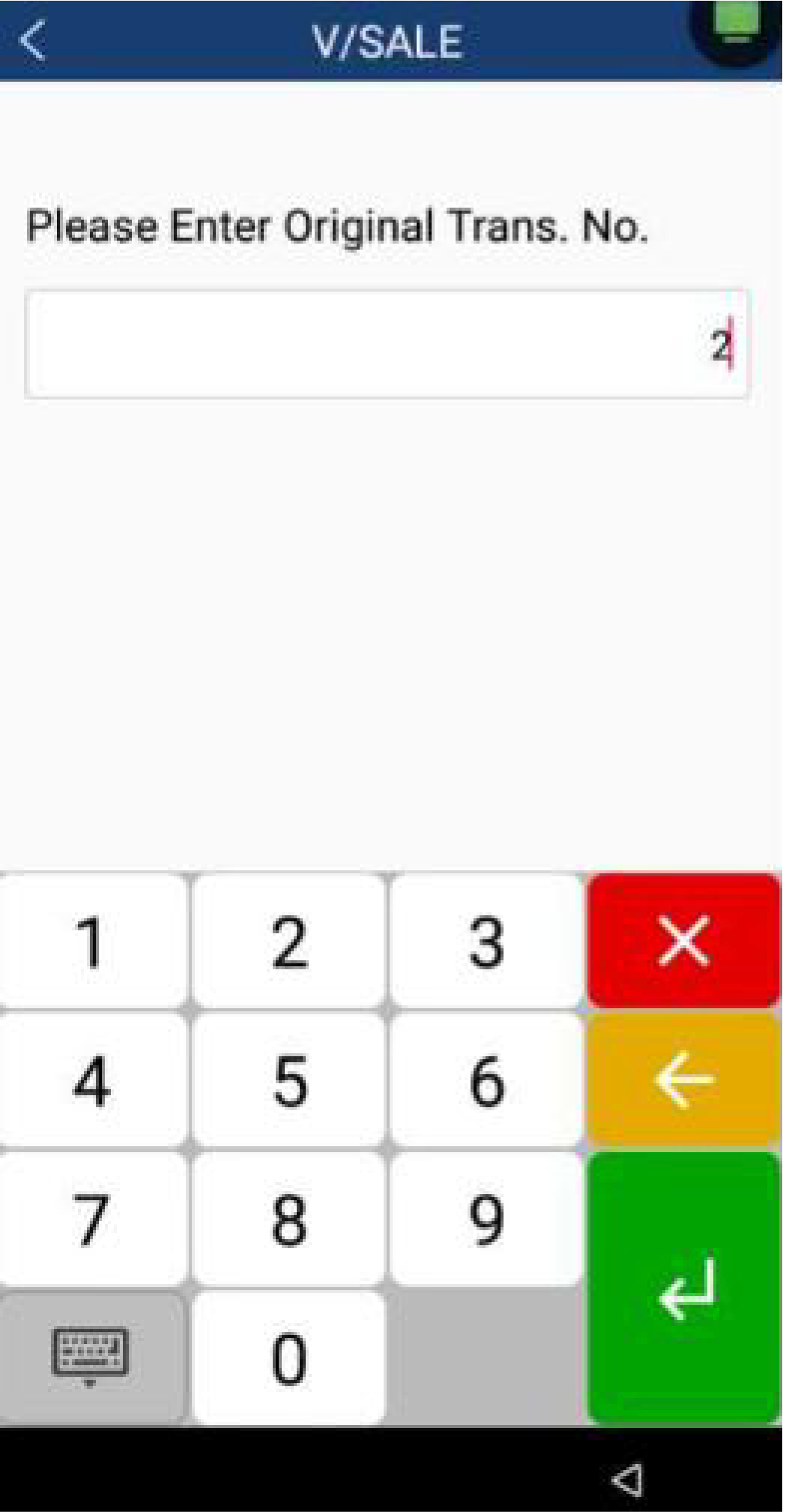
Enter the Original Transaction Number, then press Enter.
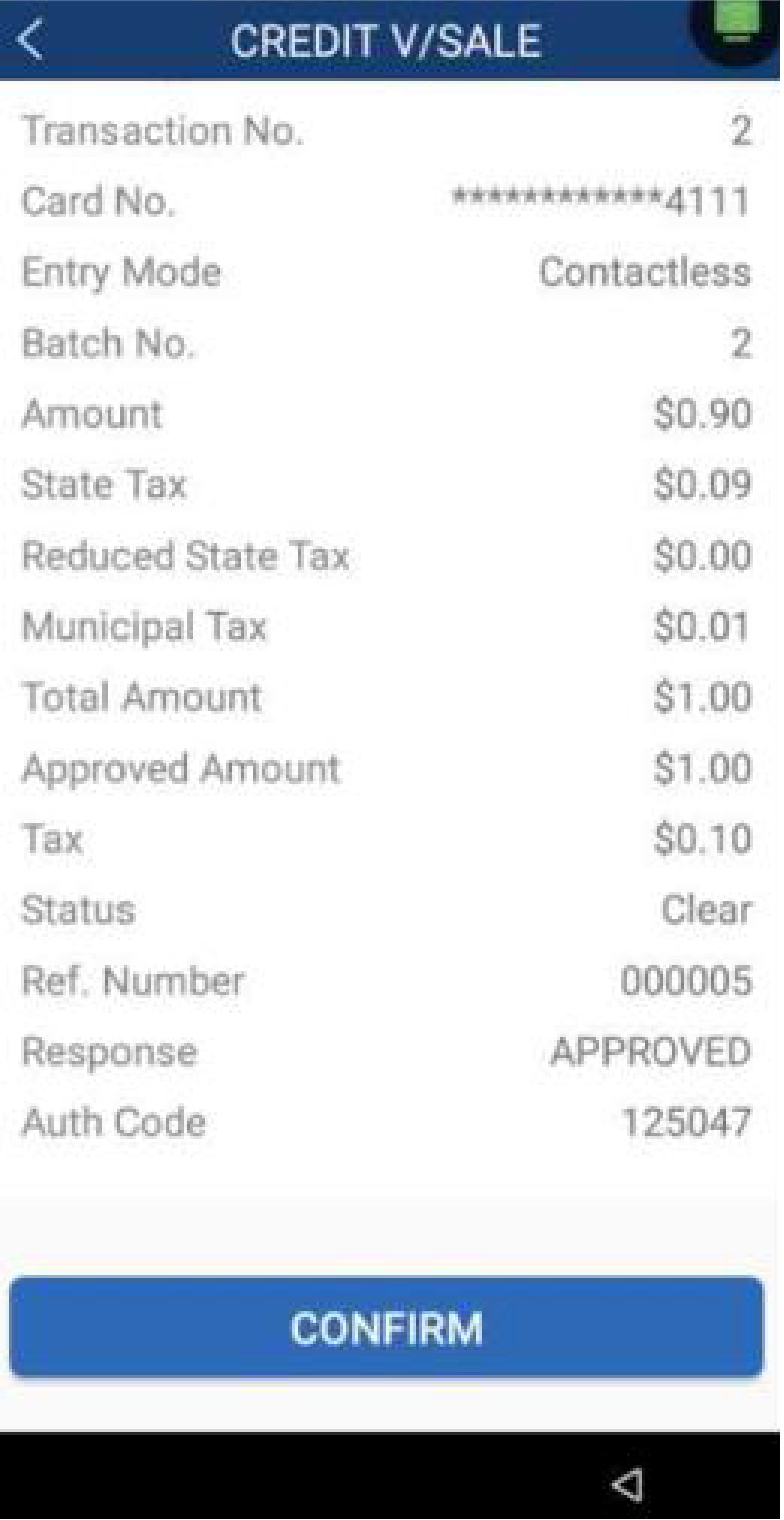
The terminal will display a summary of the transaction. Press Confirm to void the transaction.
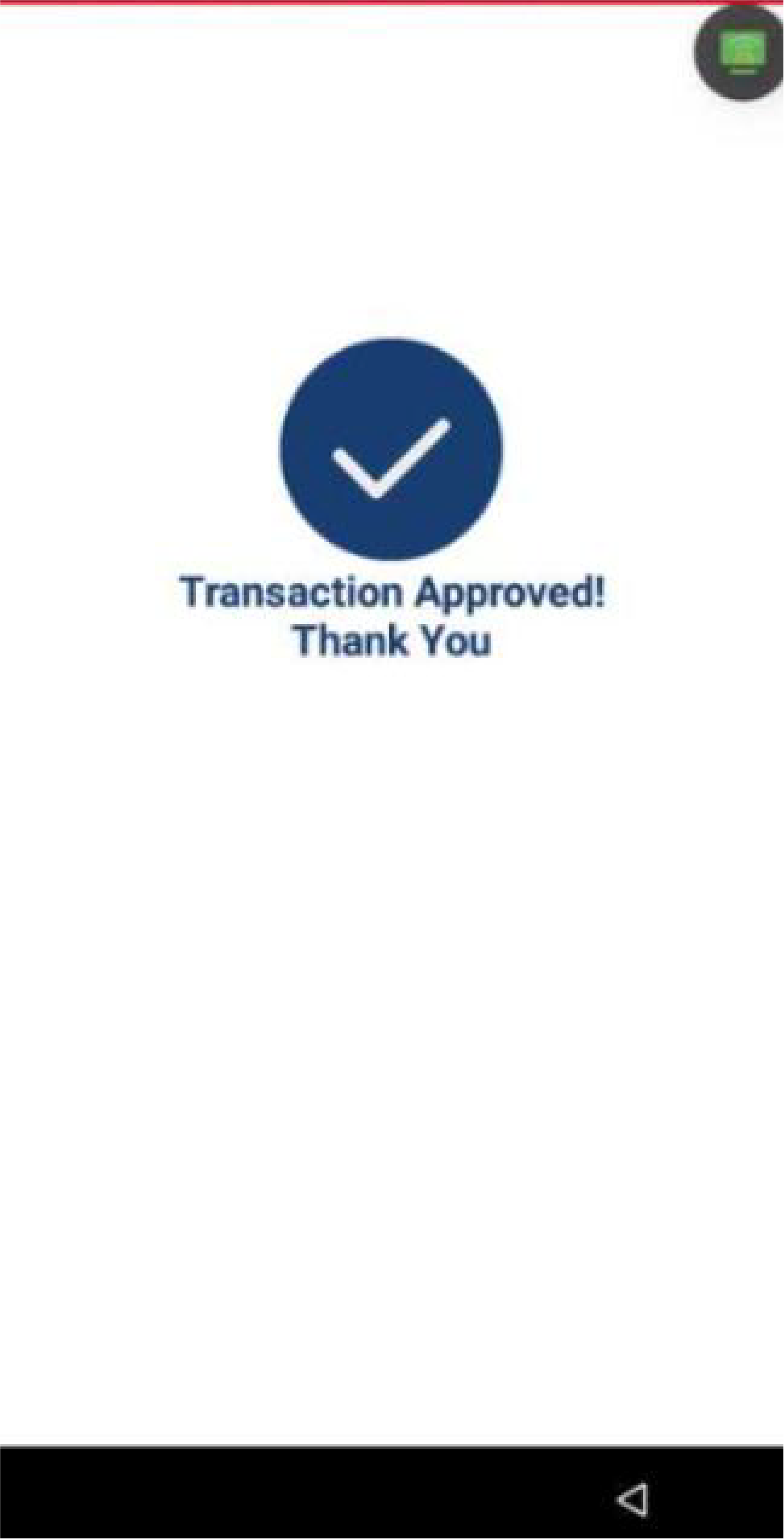
Choose a receipt option for the customer (print, SMS, or no receipt).

Reprint
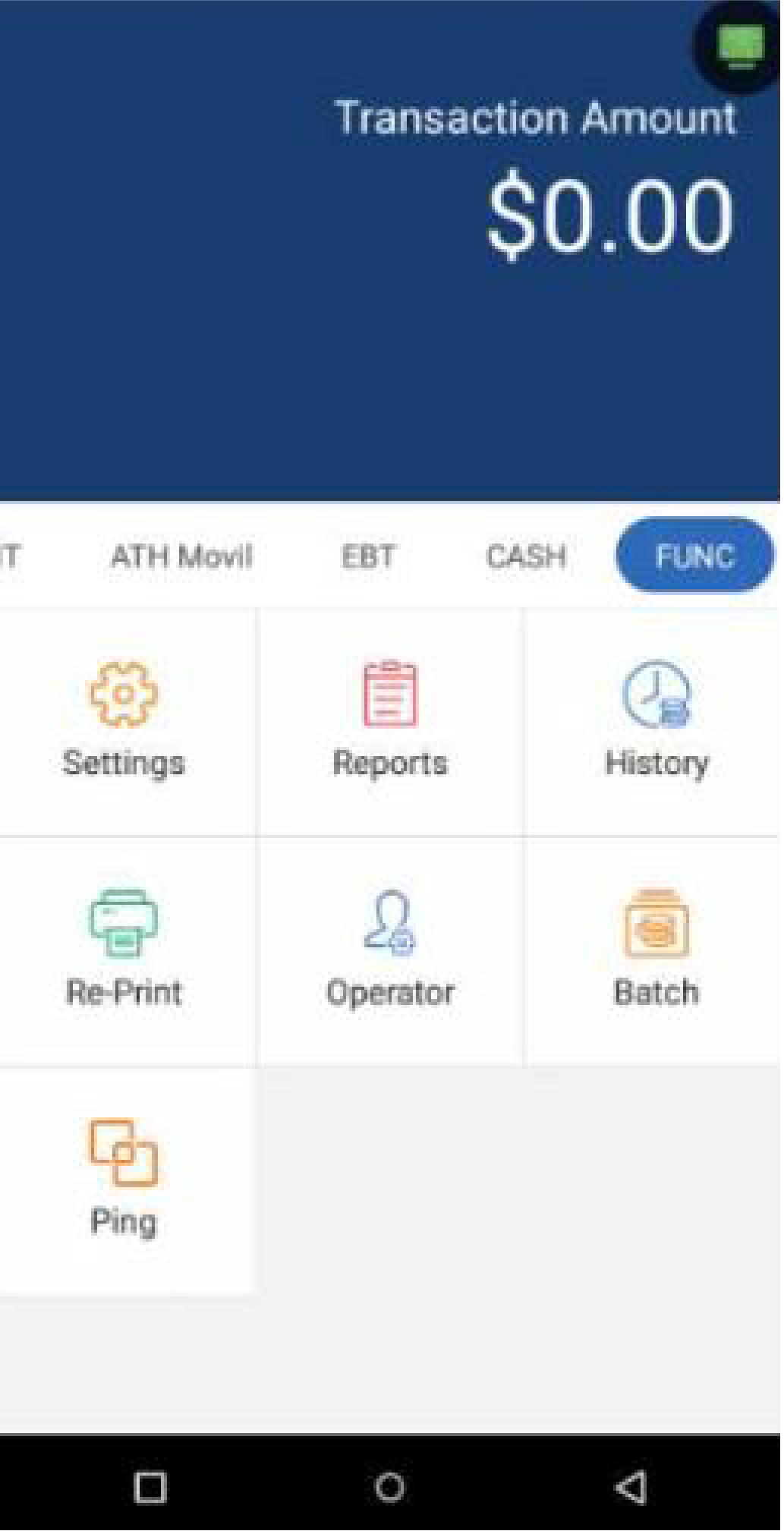
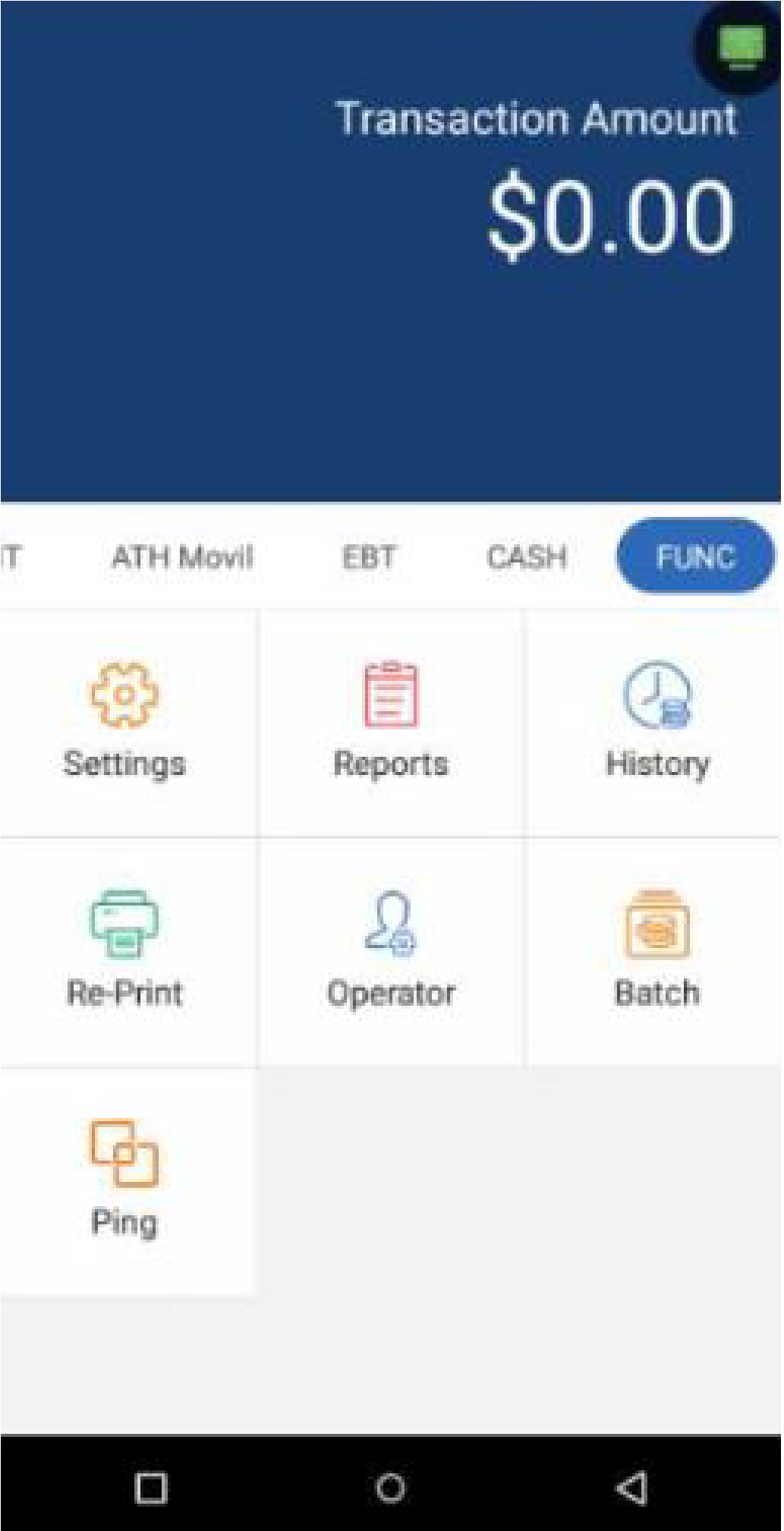
In the Functions screen, press Re-Print.
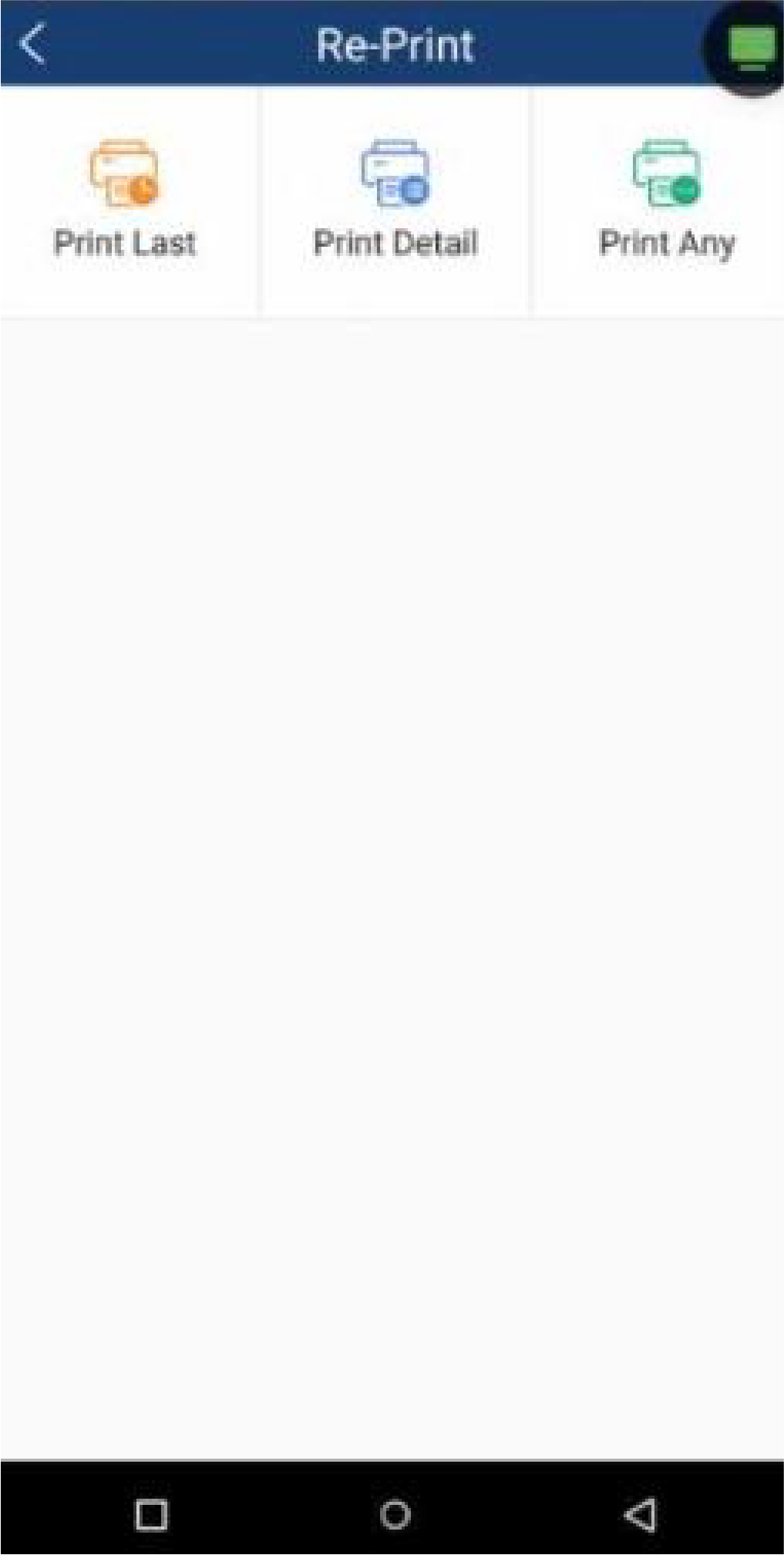
Choose between Print Last, Print Detail or Print Any.
The terminal will print the selected receipt.

Reports
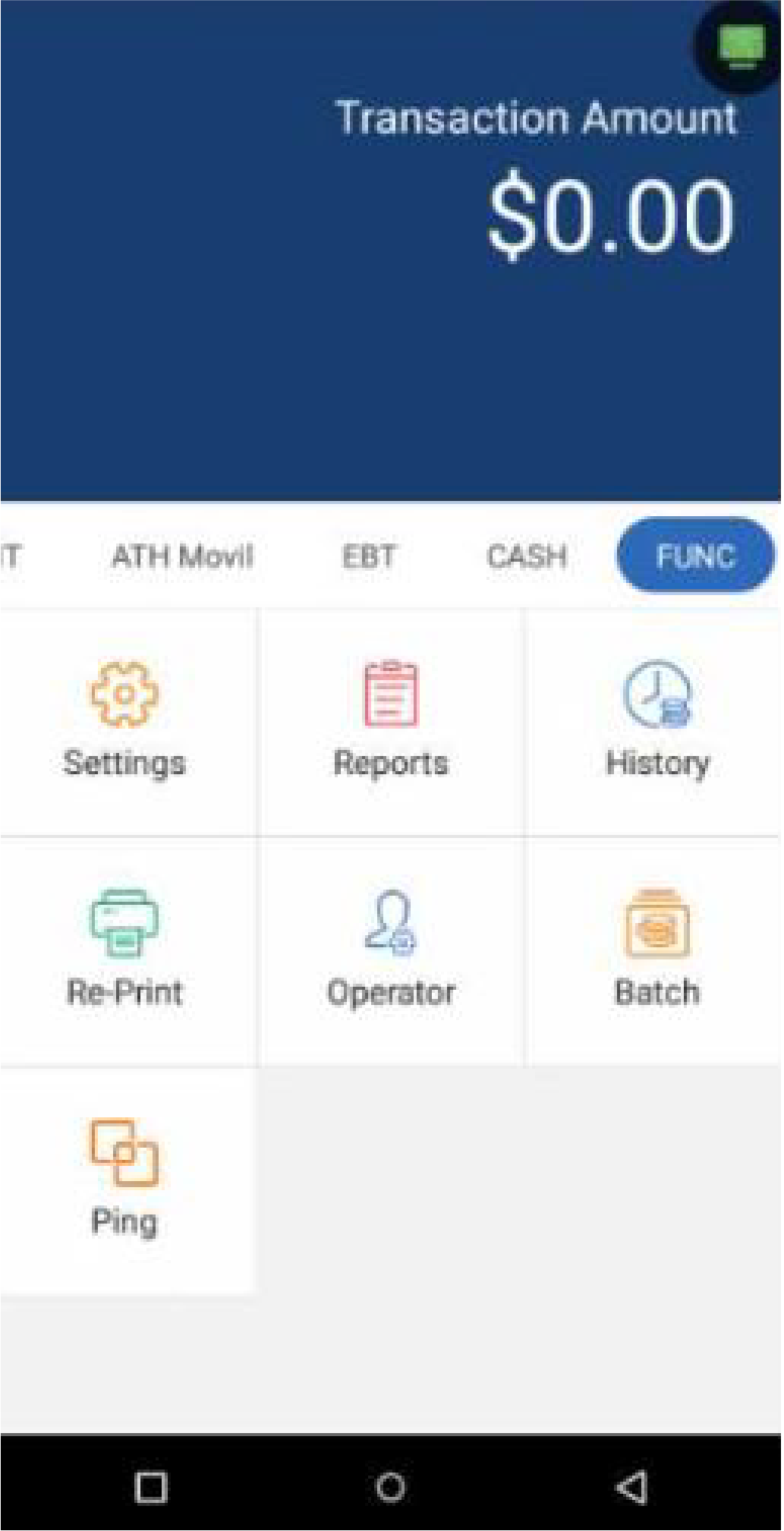
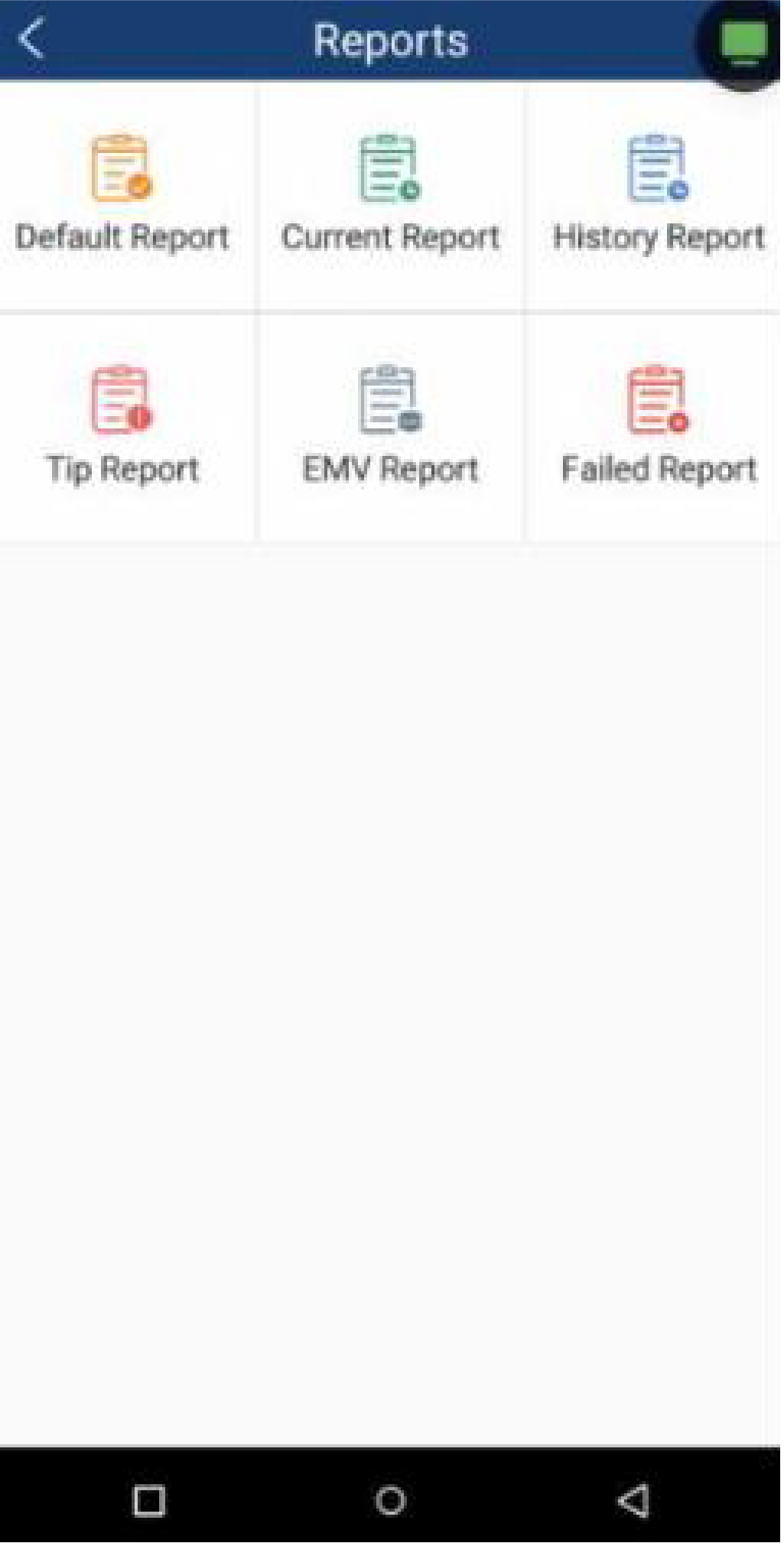
In the Functions screen, press Reports.
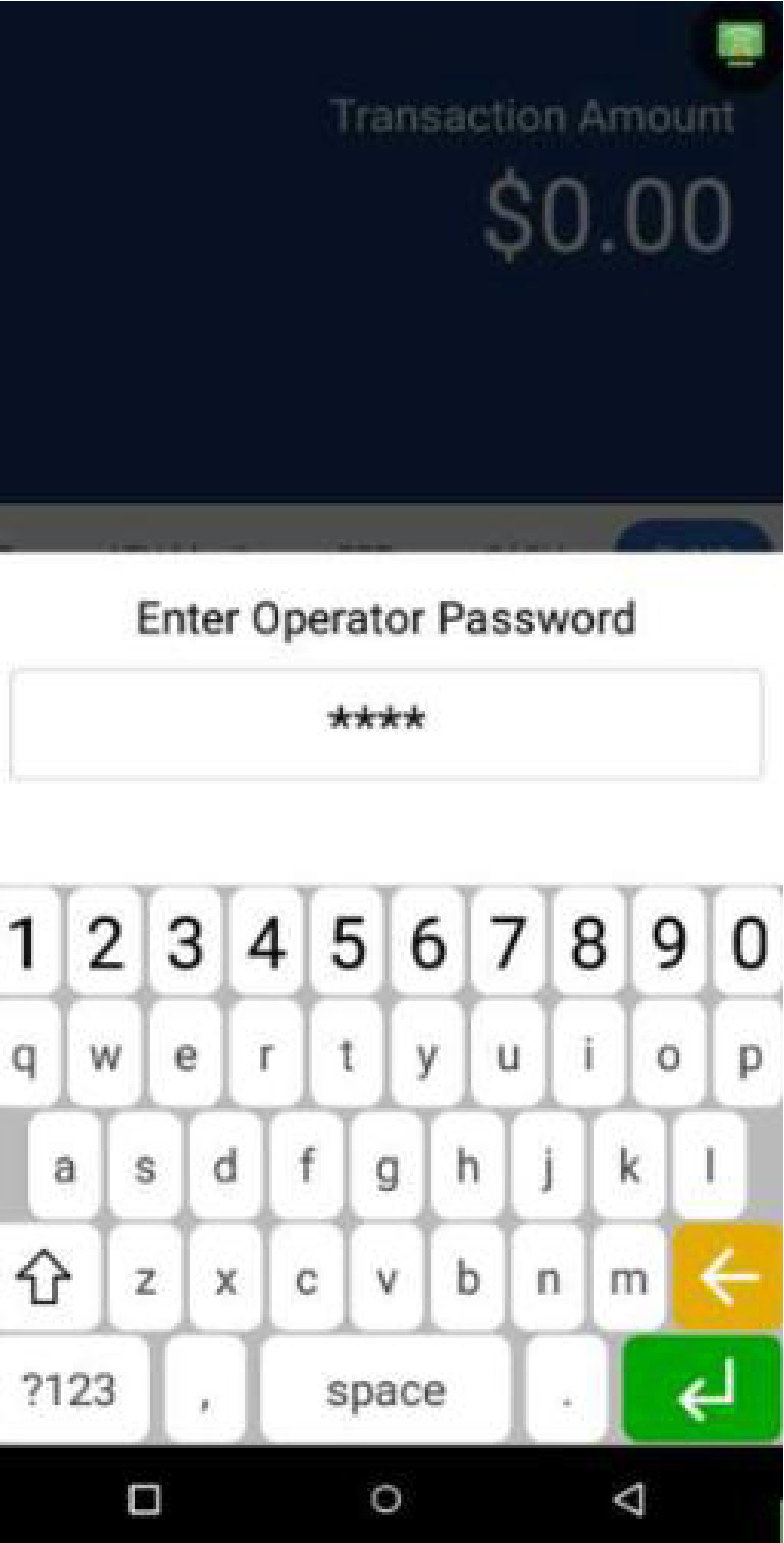
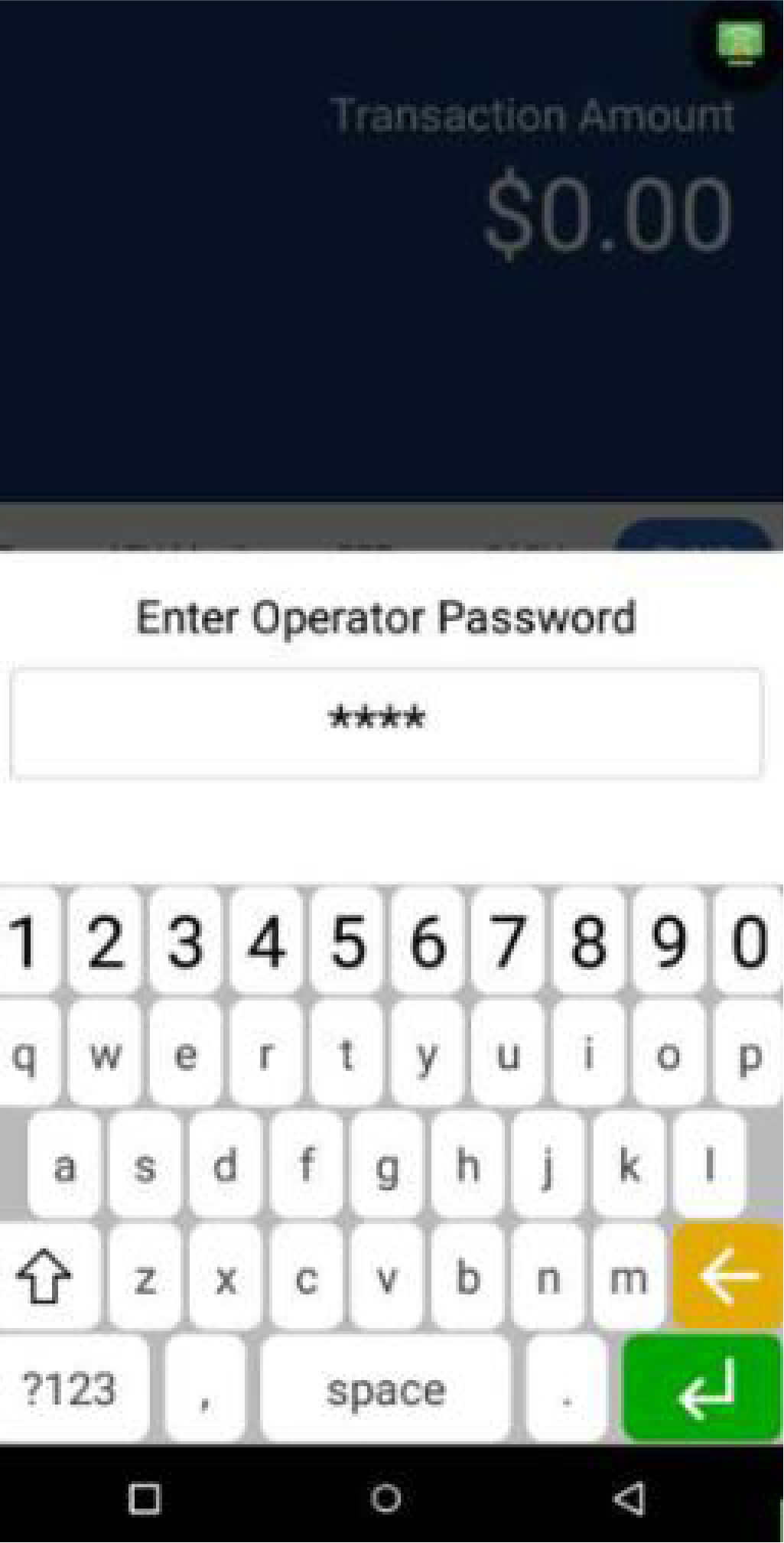
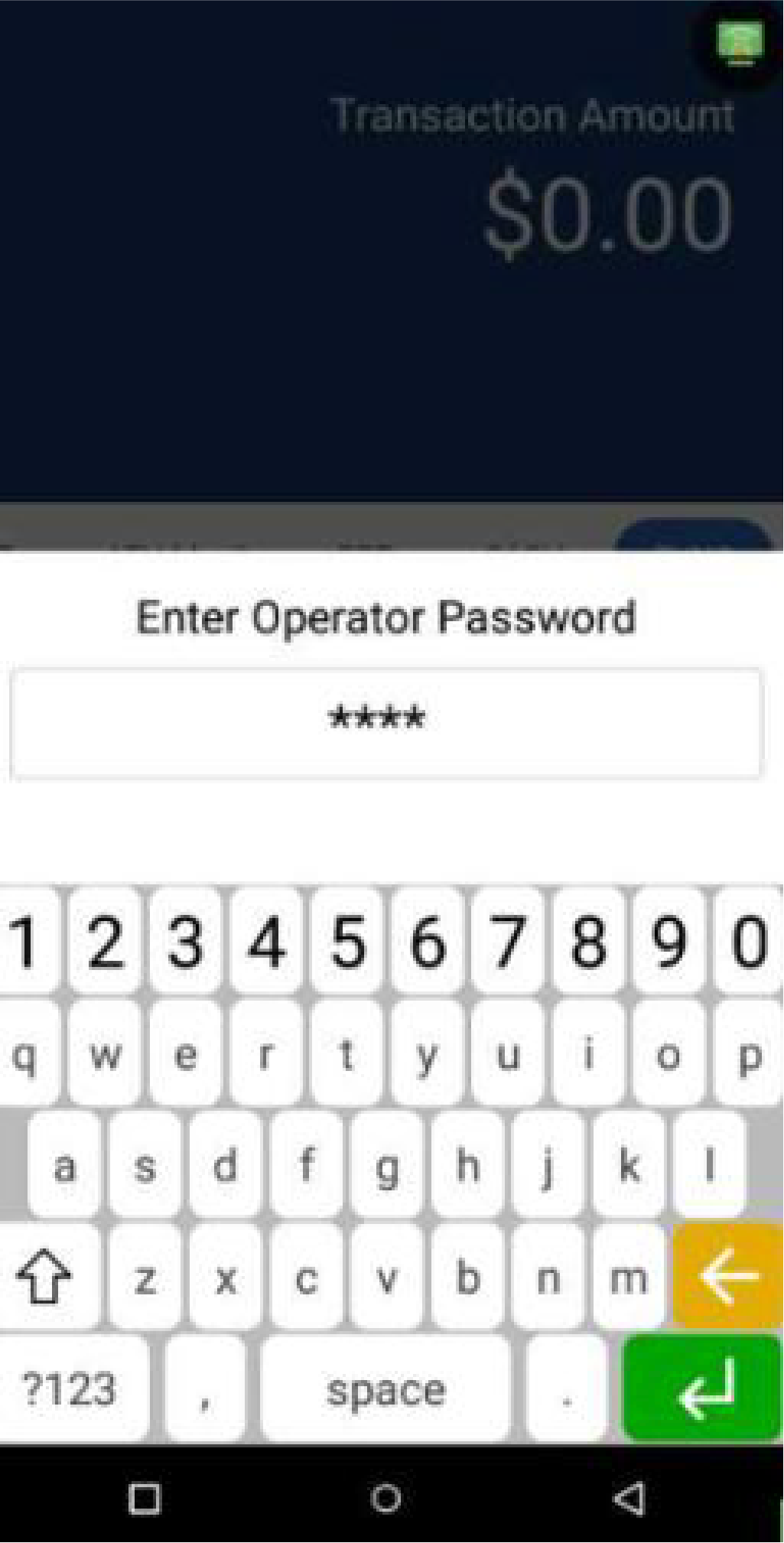
Enter the Operator password.
Choose the type of report you would like to print.

Settlement
In the Functions screen, press Reports.
Enter the Operator password.
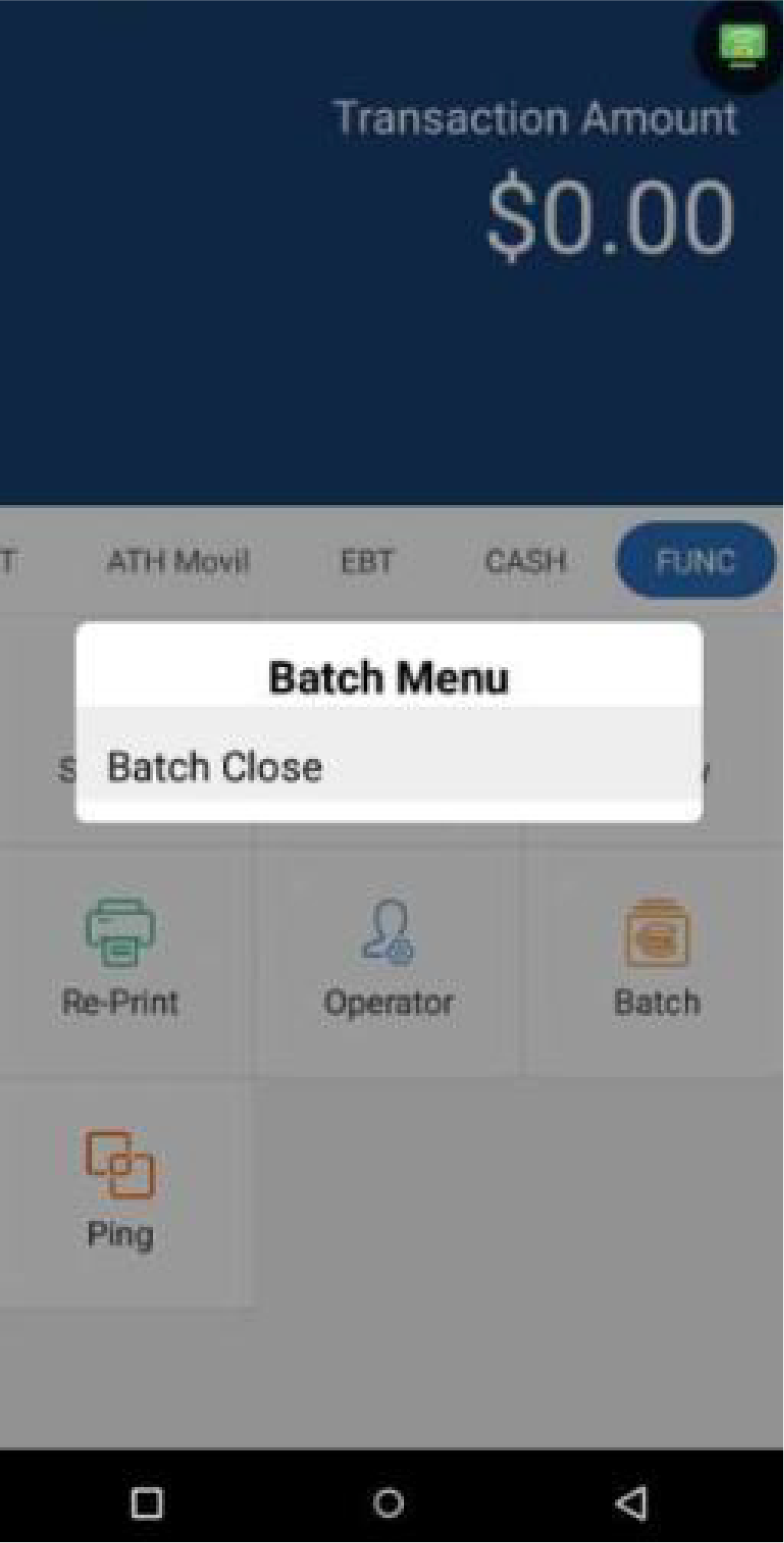
Press Batch Close. The terminal will automatically print a Condensed and Batch Report.