

Sale
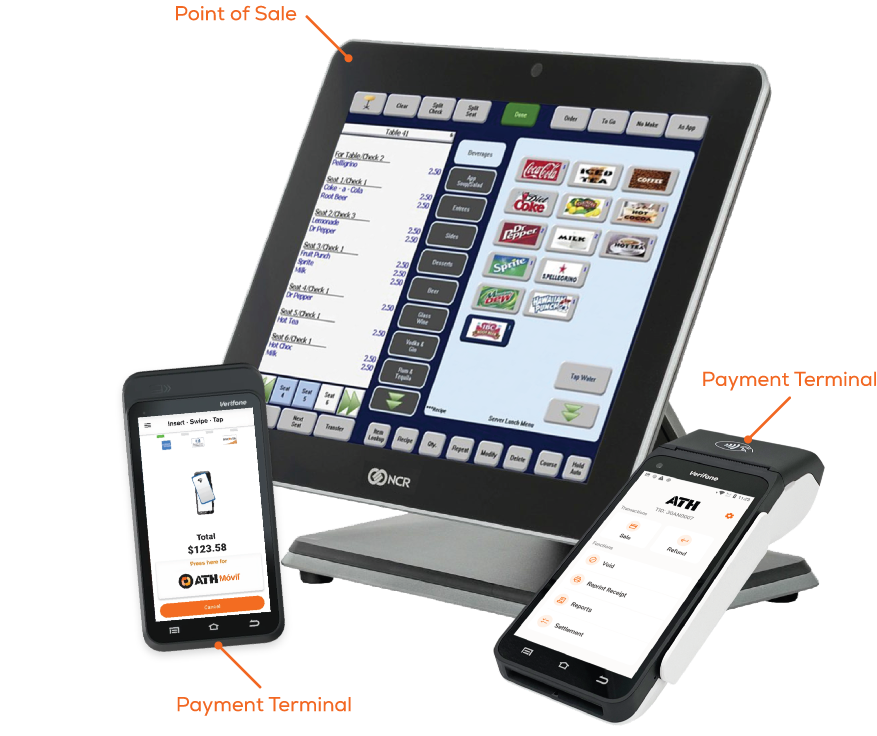
POS and Payment Terminal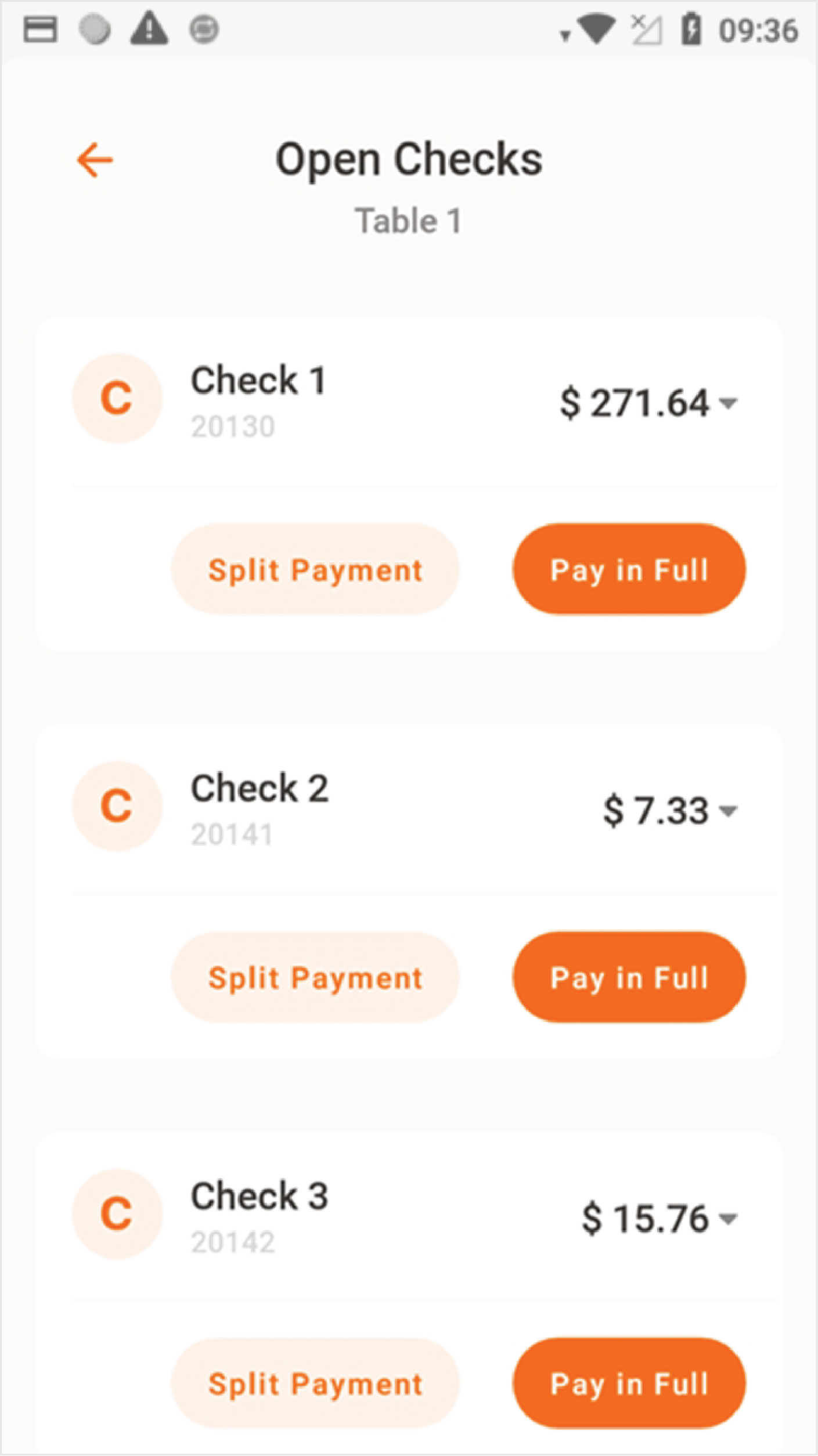
1 | Point of Sale
Enter The employee identification number on the main screen.
To create an order, press New and enter the amount of
guests. Then, select the order items and press Done.
2 | Payment Terminal
Go to PayAtTable in the payment terminal main menu.
Press Sale and enter the employee identification number.
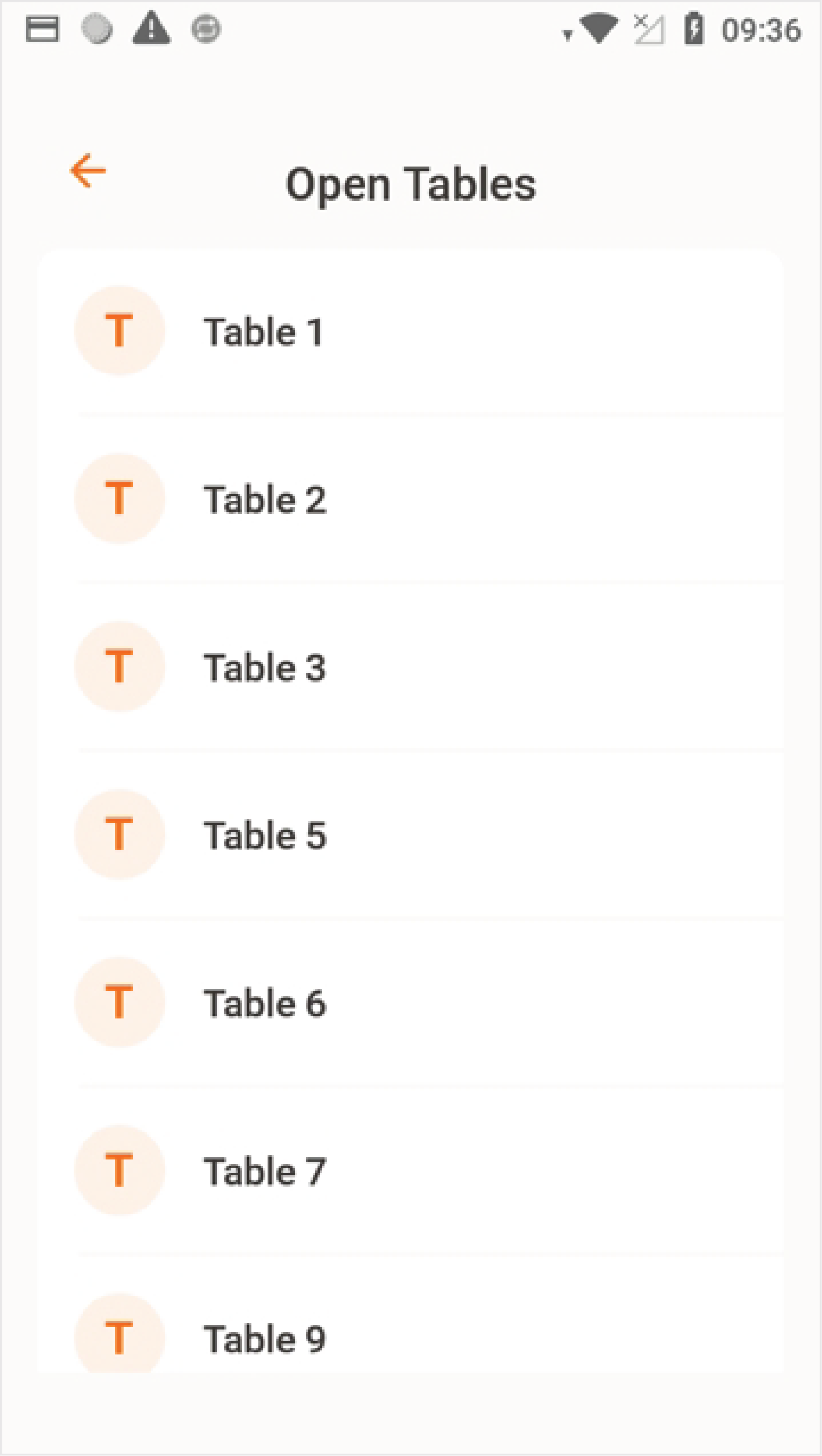
Choose a table, the check to close, and press Pay in Full.
The terminal will display tip options (select between
percentage, custom amount, and no tip).
Customers can Insert, Tap, or Swipe their cards to pay or
press the ATH Móvil Logo to use ATH Móvil as the payment
method. For Split Payments refer to the next section.
Once the payment is processed, the terminal will display if the transaction was Approved or Declined.
If the payment is approved, choose a receipt option for the
customer (SMS, print, or no receipt).

Split Payment Sale
POS and Payment Terminal
1 | Point of Sale
Follow the Point of Sale steps for Sale.
2 | Payment Terminal
Go to PayAtTable in the payment terminal main menu.
Press Sale and enter the employee identification number.
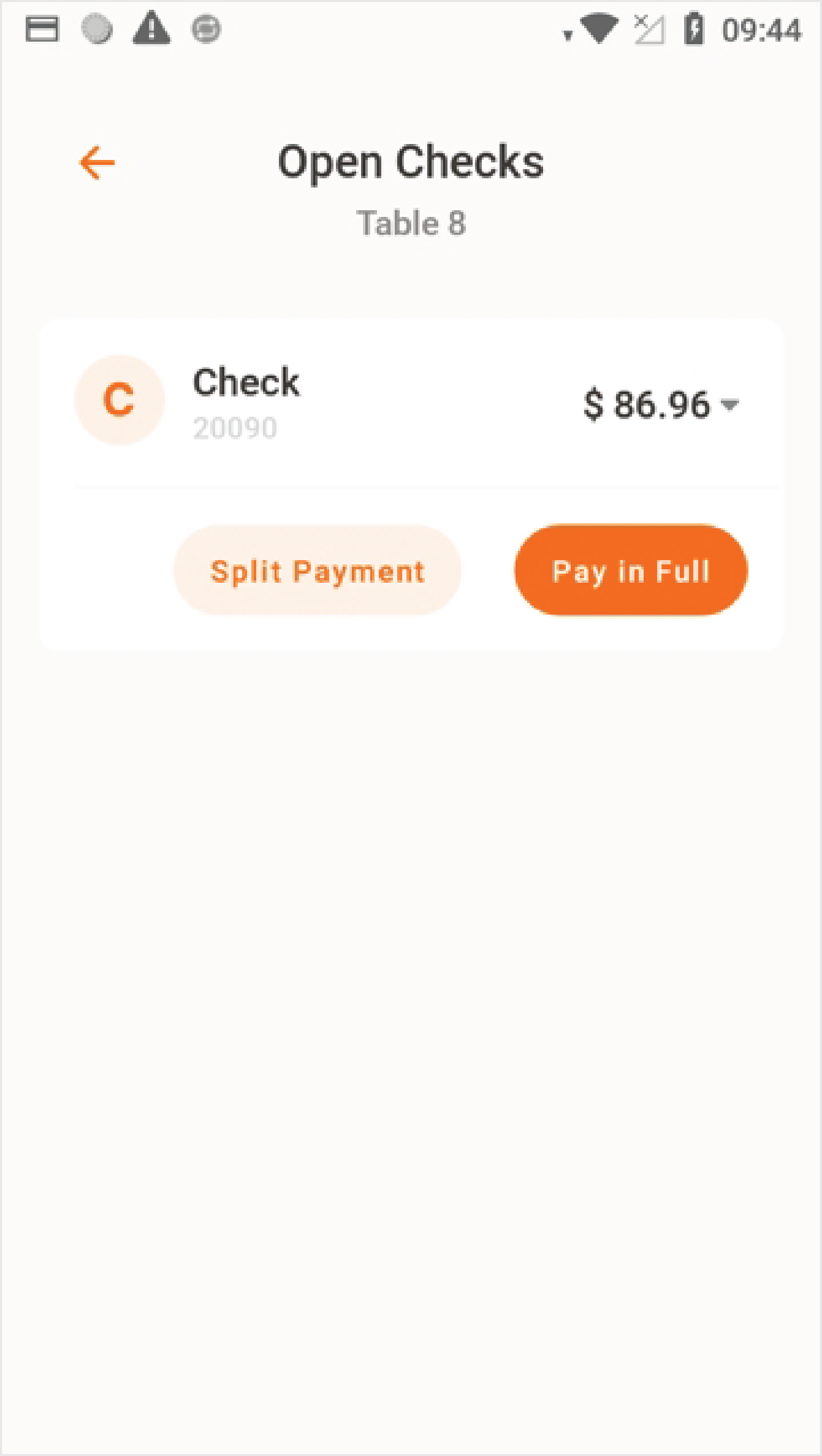
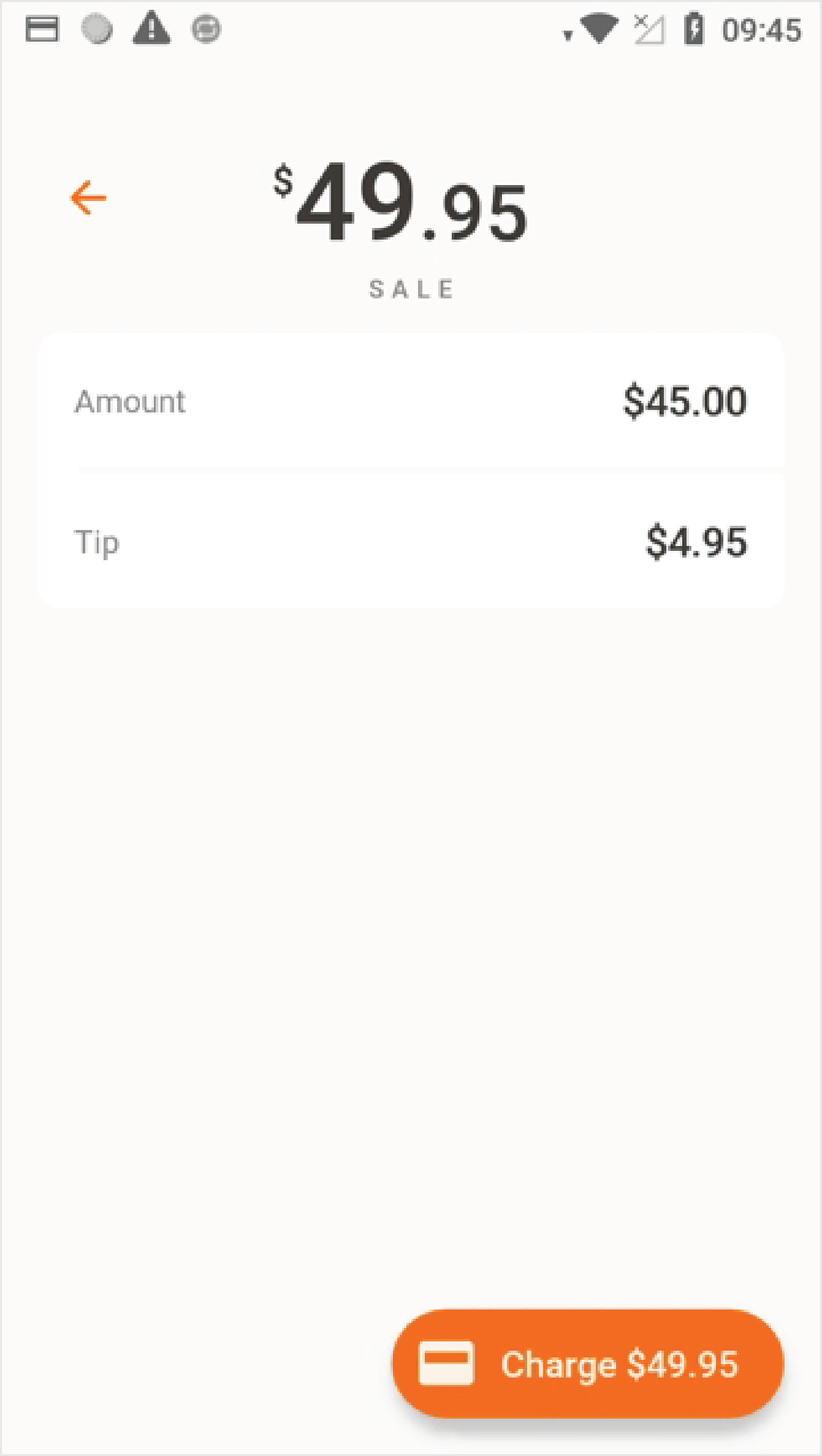
Select the table, the check to close, and press Split Payment. Enter the amount to be paid. Press Tip to add
gratuity (select between percentage, custom amount, and
no tip). Press Charge.
Customers can Insert, Tap, or Swipe their cards to pay or
press the ATH Móvil Logo to use ATH Móvil as the payment
method. For Split Payments refer to the next section.
Once the payment is processed, the terminal will display if
the transaction was Approved or Declined.
If the payment is approved, choose a receipt option for the
customer (SMS, print, or no receipt).
Once the payment is complete, the terminal will display the
pending balance. Press Split Payment to make another
partial payment or Pay in Full to clear the remaining
balance.

Refund
POS and Payment Terminal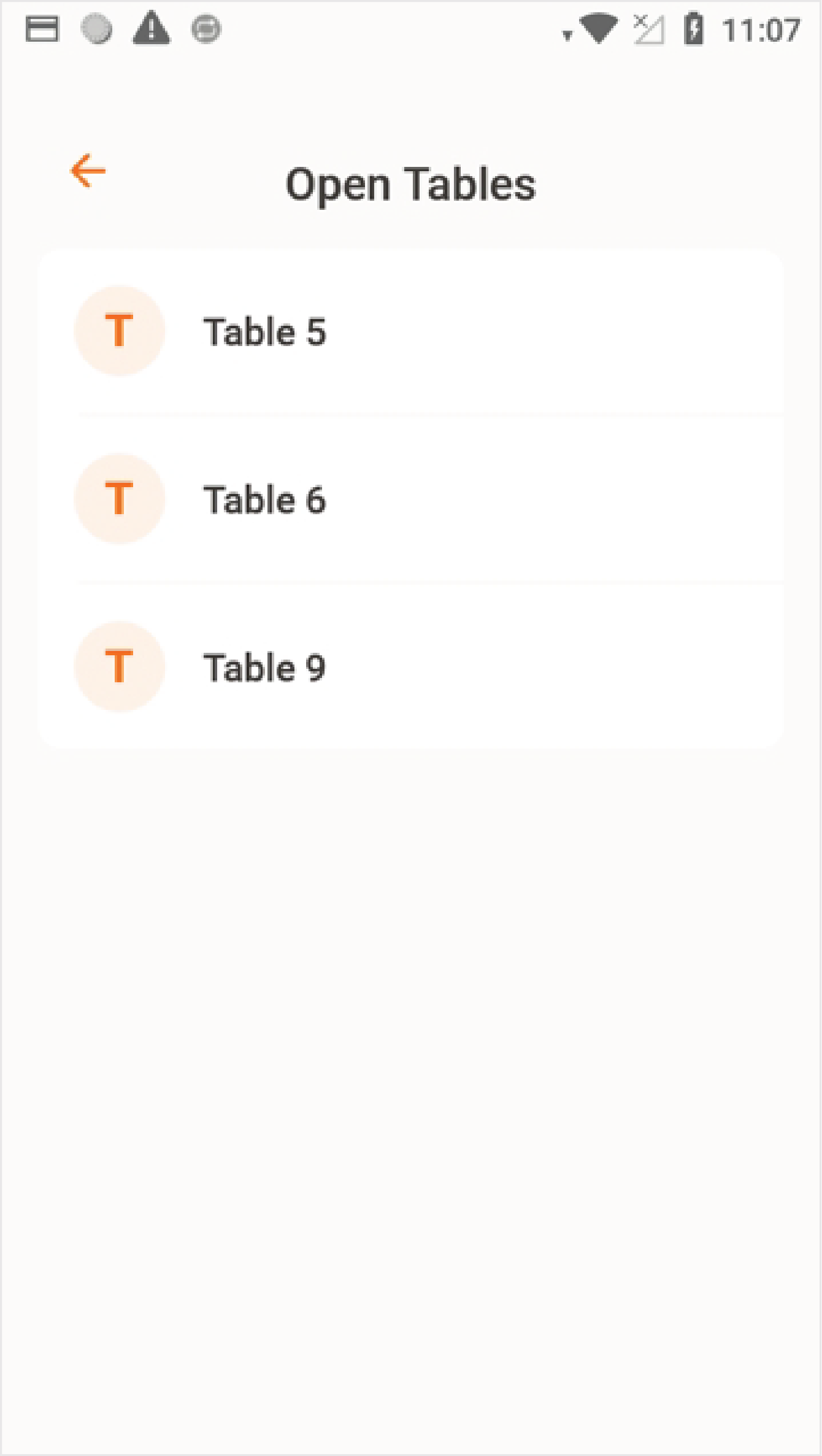
1 | Point of Sale
To start a refund, press Refund at the bottom of the screen
and select the reason for the reimbursement.
Enter the table number, then select the items to be
refunded and press Done.
2 | Payment Terminal
Go to PayAtTable in the payment terminal main menu.
Press Refund and enter the terminal password and
employee identification number.
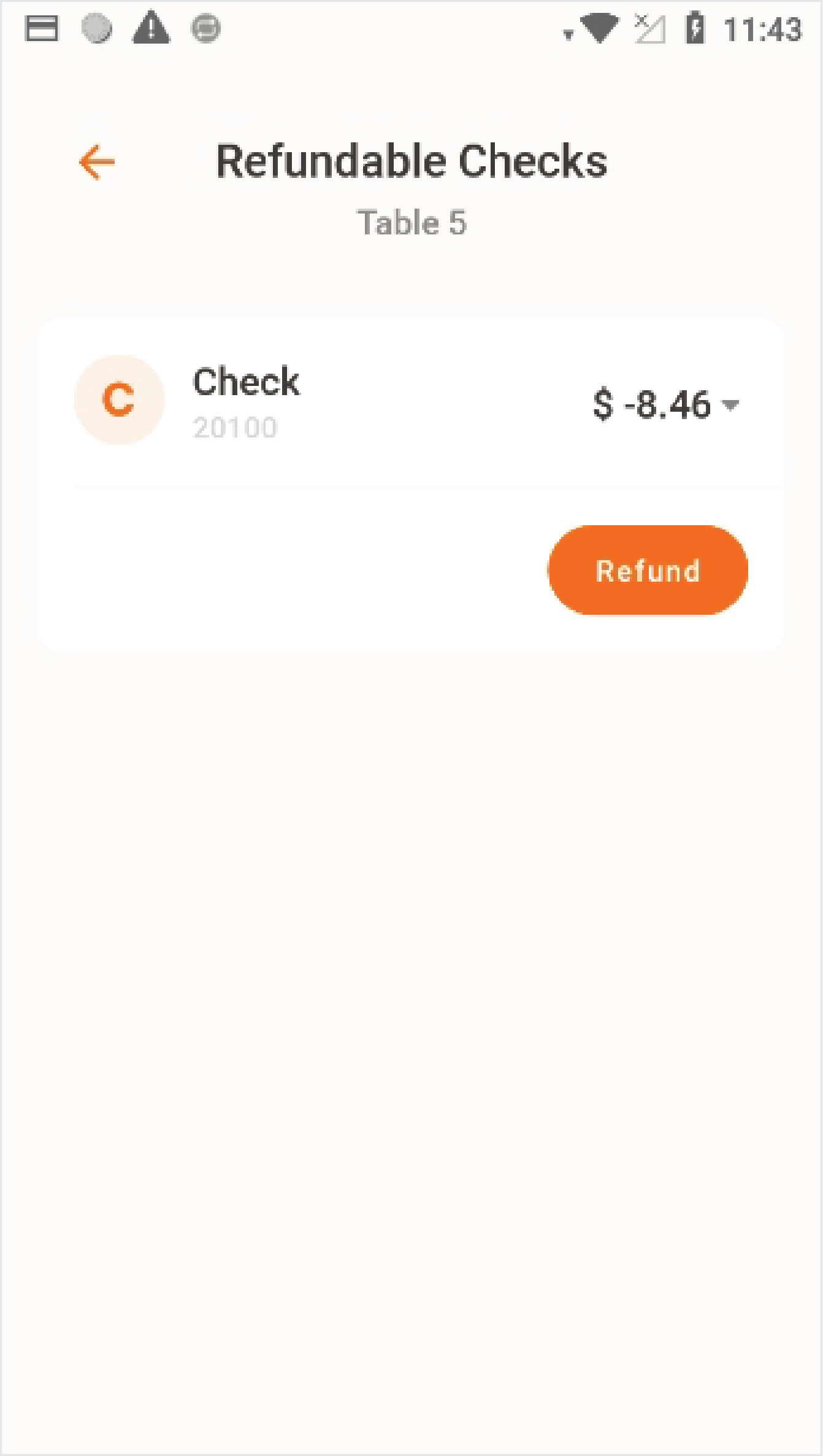
Select the table to be reimbursed and press Refund.
Customers can IInsert, Tap, or Swipe their cards to receive
their refund.
If the payment was made using ATH Móvil, press the ATH Móvil logo and enter the transaction identification number.
Once the payment is processed, the terminal will display if
the transaction was Approved or Declined.
If the payment is approved, choose a receipt option for the
customer (SMS, print, or no receipt).

Void
POS and Payment Terminal
1 | Point of Sale
To start a Void, select a table from the main screen and
press Close.
Select the transaction authorization and press Delete.
Press Yes to remove the payment. The screen will display
this transaction as Voiding.
Press Exit to go back to the main screen.
2 | Payment Terminal
Go to PayAtTable in the payment terminal main menu.
Press Void and enter the terminal password and employee
identification number.
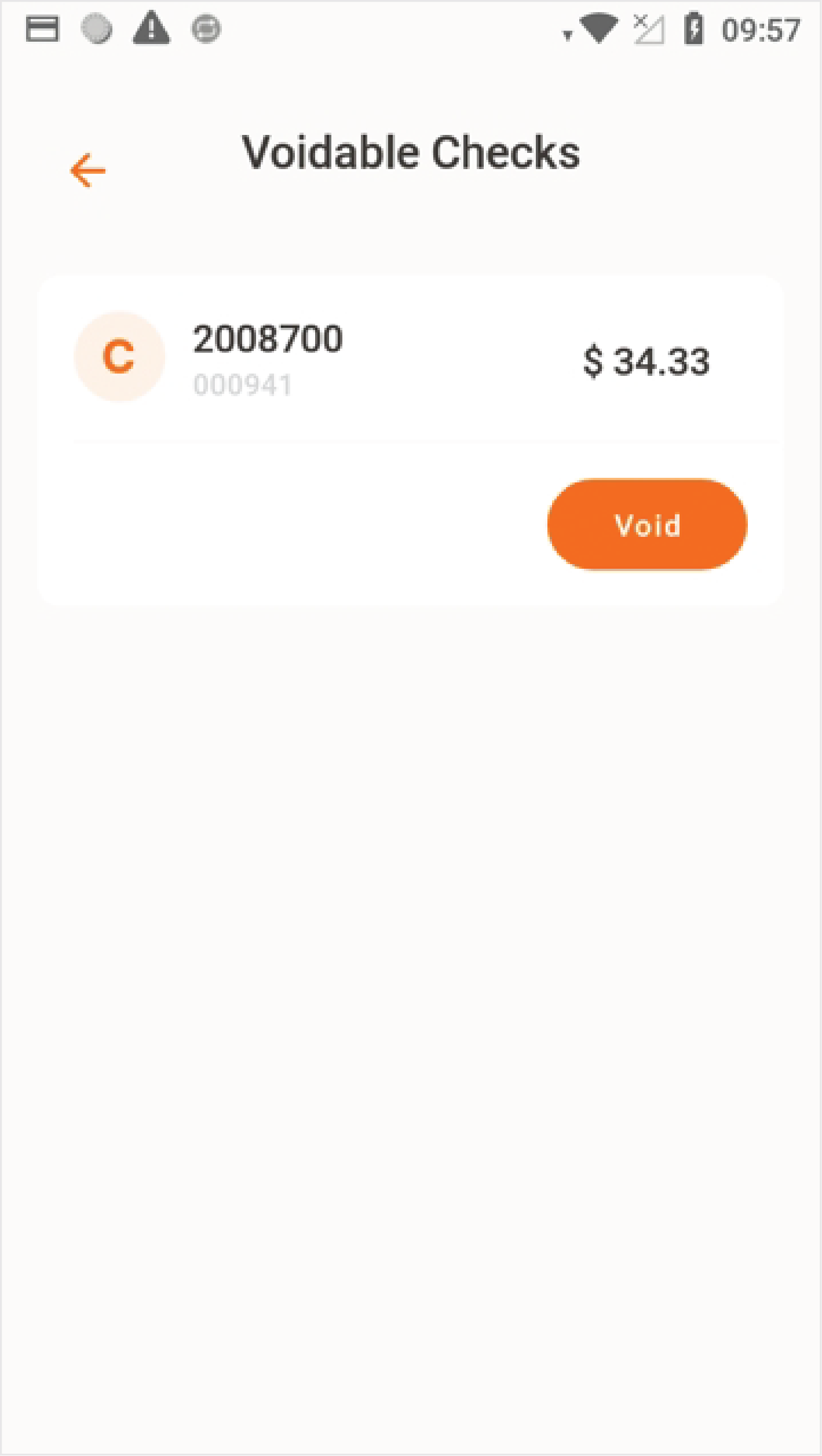
Press Void to cancel the transaction.
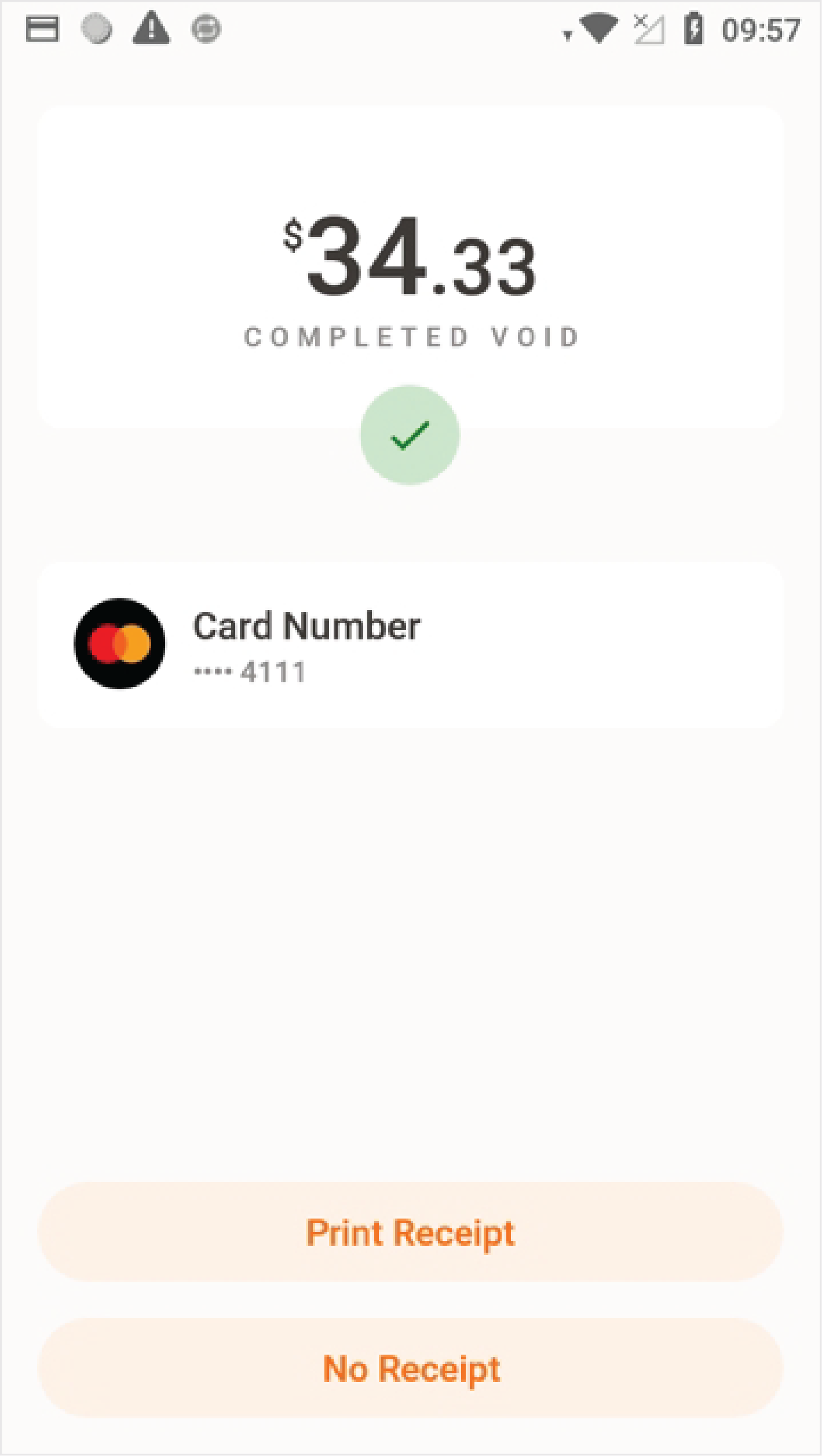
Once processed, the terminal will display the void
confirmation.

Reprint Receipt
Payment Terminal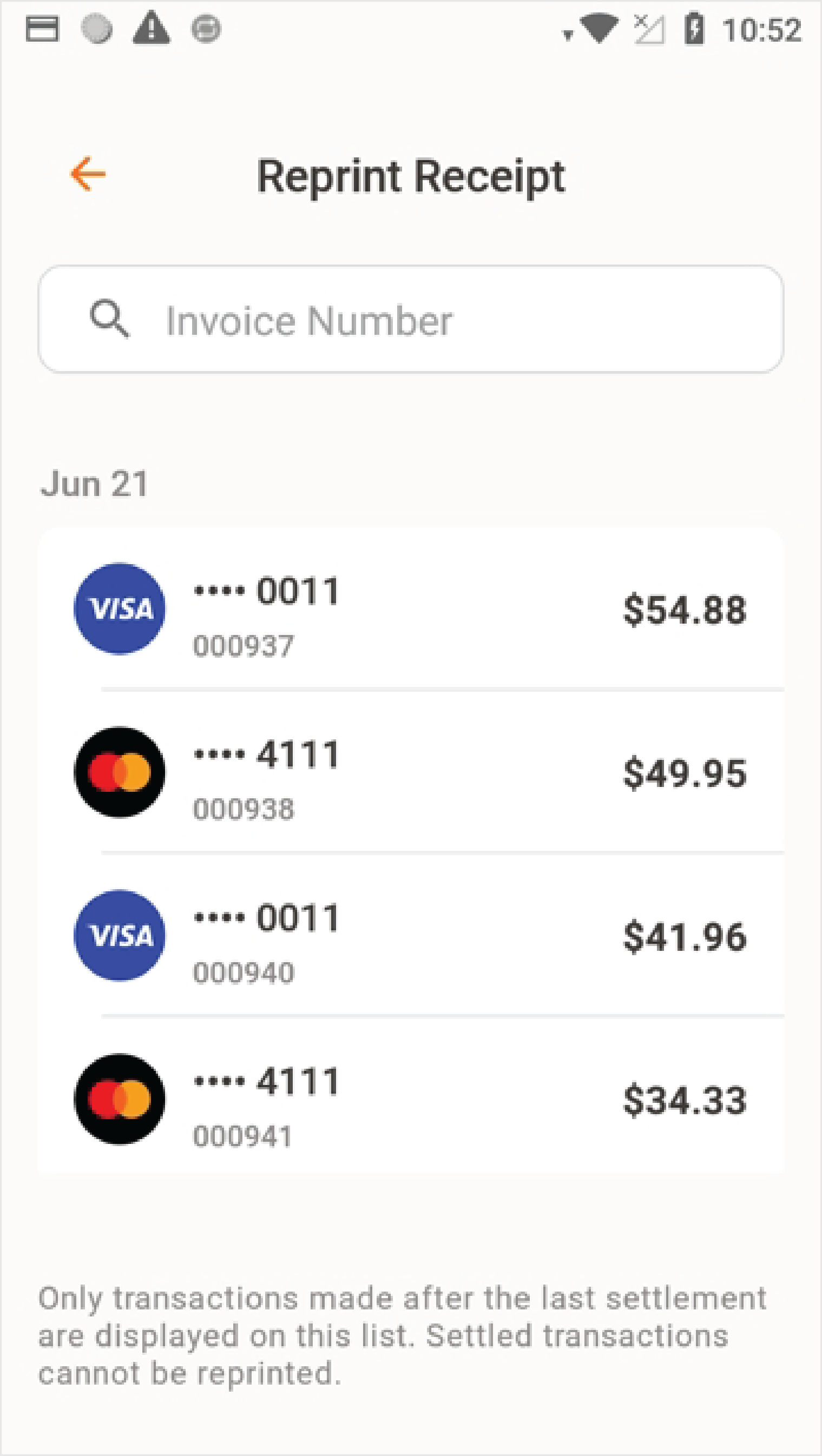
Go to PayAtTable in the payment terminal main menu.
Press Reprint Receipt and enter the terminal
password.
Choose a transaction from the list or search for it by
entering the invoice number.
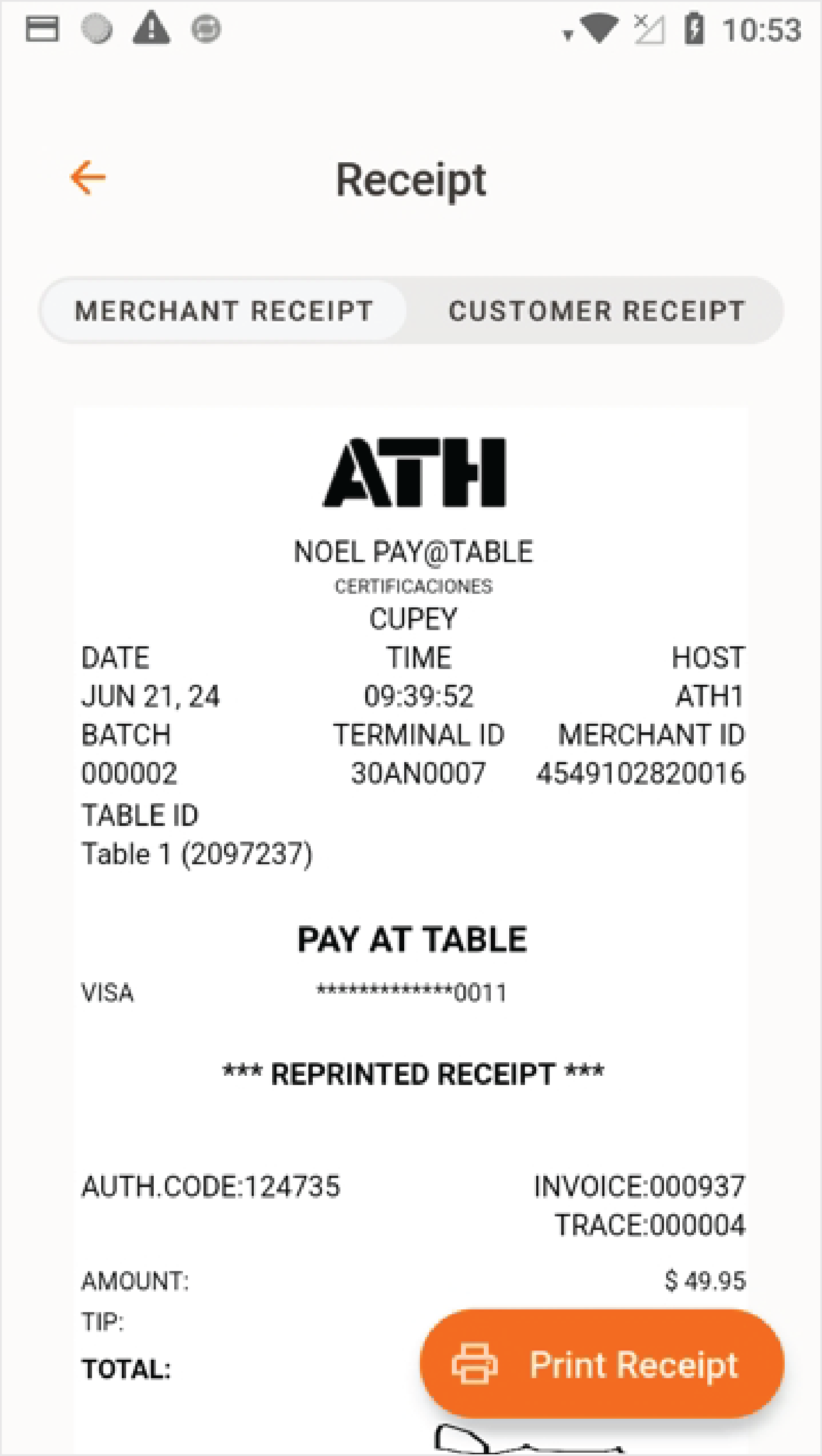
After choosing a transaction, a summary will be
displayed.
Press Reprint Receipt.
Choose which receipt you would like to reprint
(Merchant or Customer). Then, press Reprint Receipt.

Reports
Payment Terminal
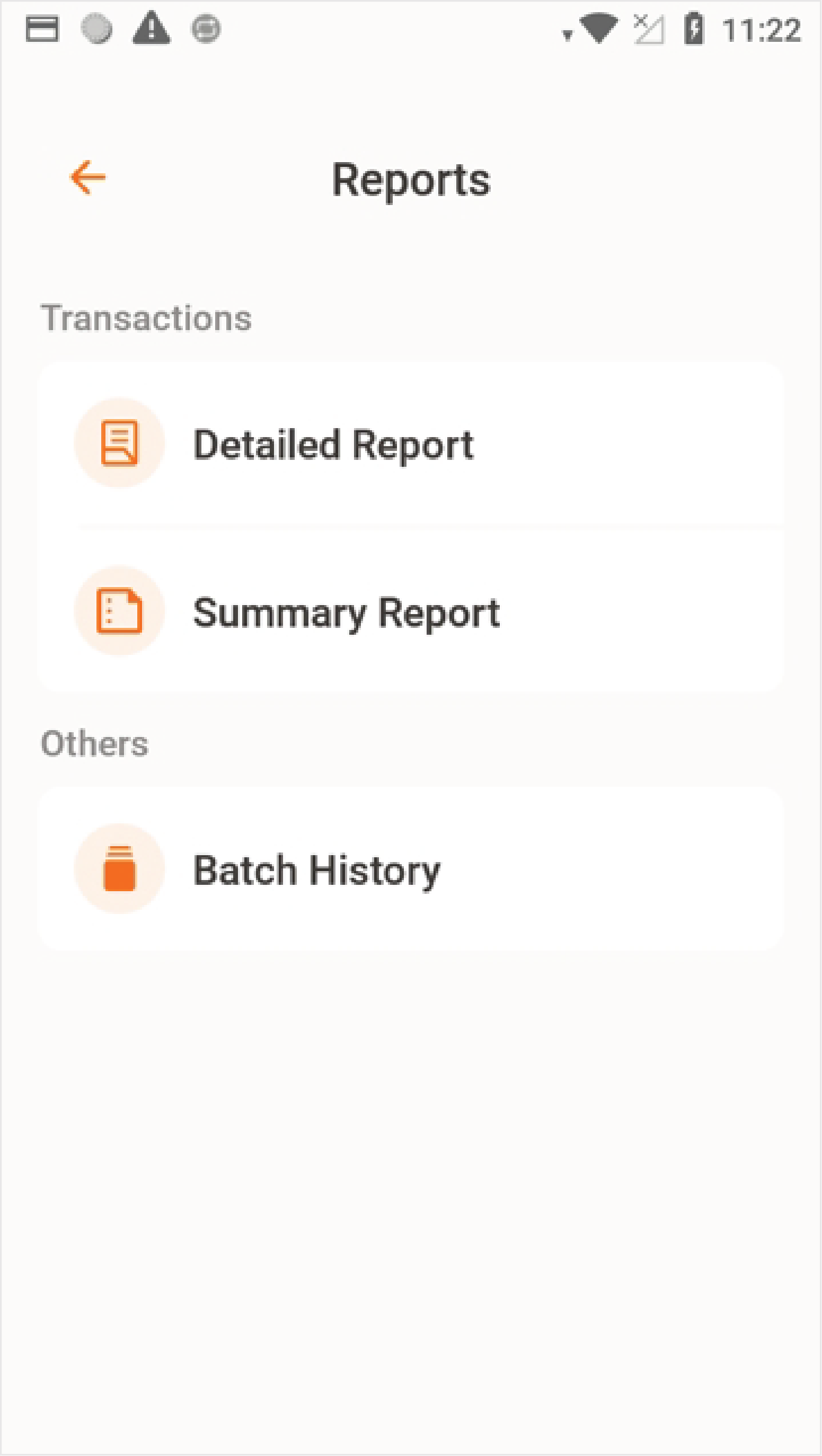
Go to PayAtTable in the payment terminal
main menu. Press Reports and enter the
terminal password.
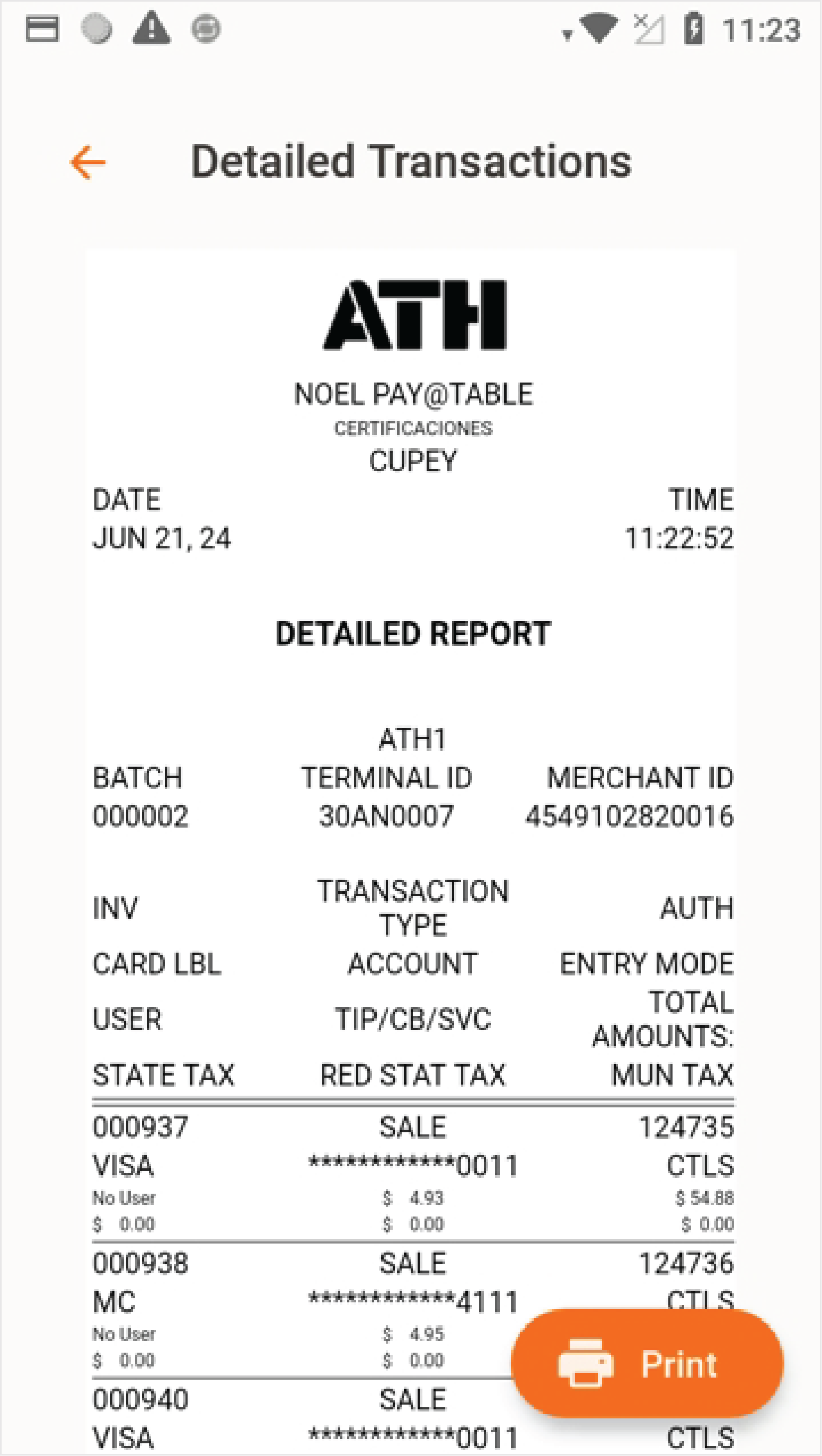
Choose the type of report you would like to view.
Optionally you can press the Print button
to print a physical copy of the report.

Settlement
Payment Terminal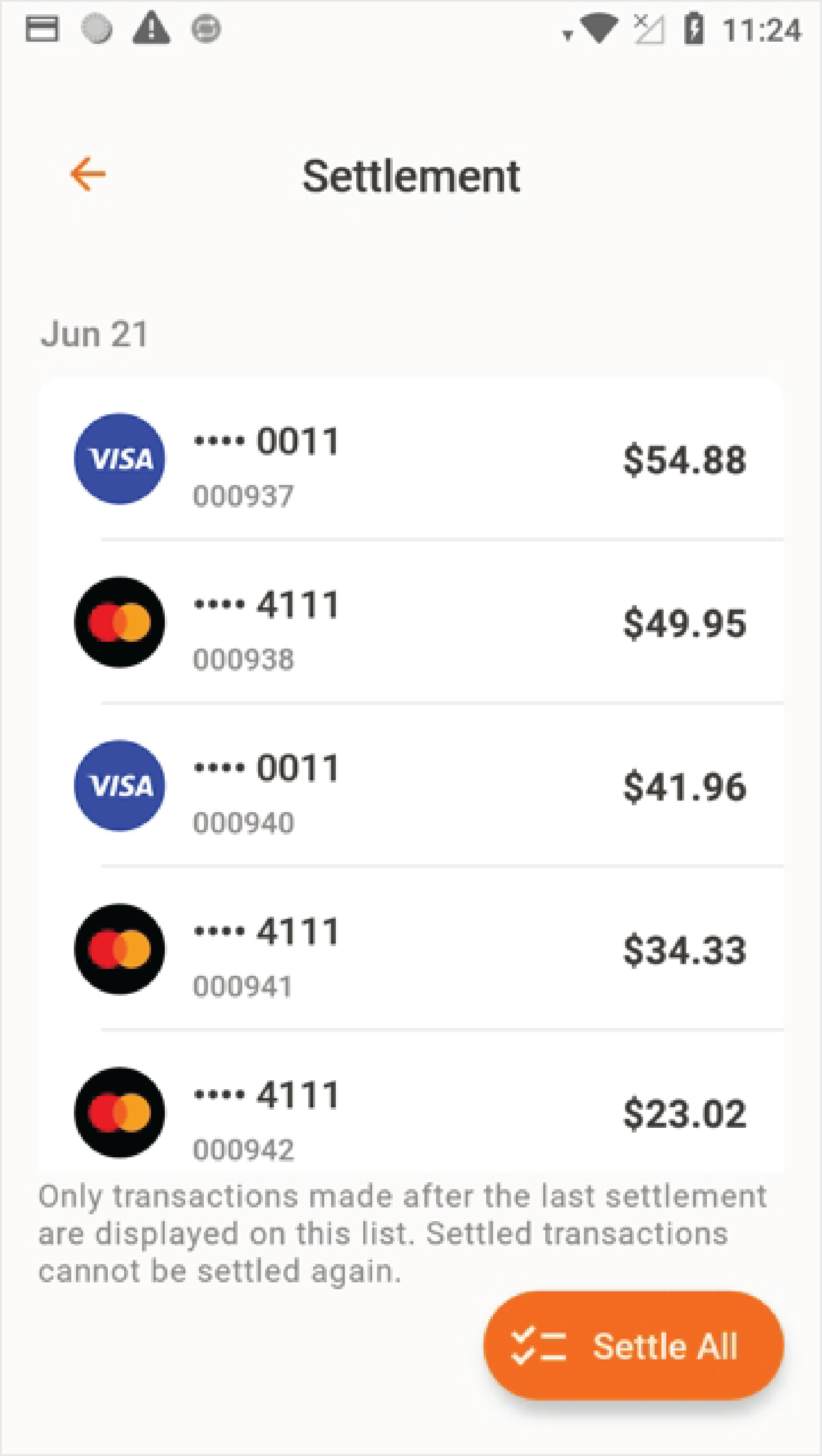
Go to PayAtTable in the payment terminal
main menu. Press Settlement and enter the terminal password.
The terminal will display a list of
transactions that have not been settled.
Press Settle All to complete the
settlement.
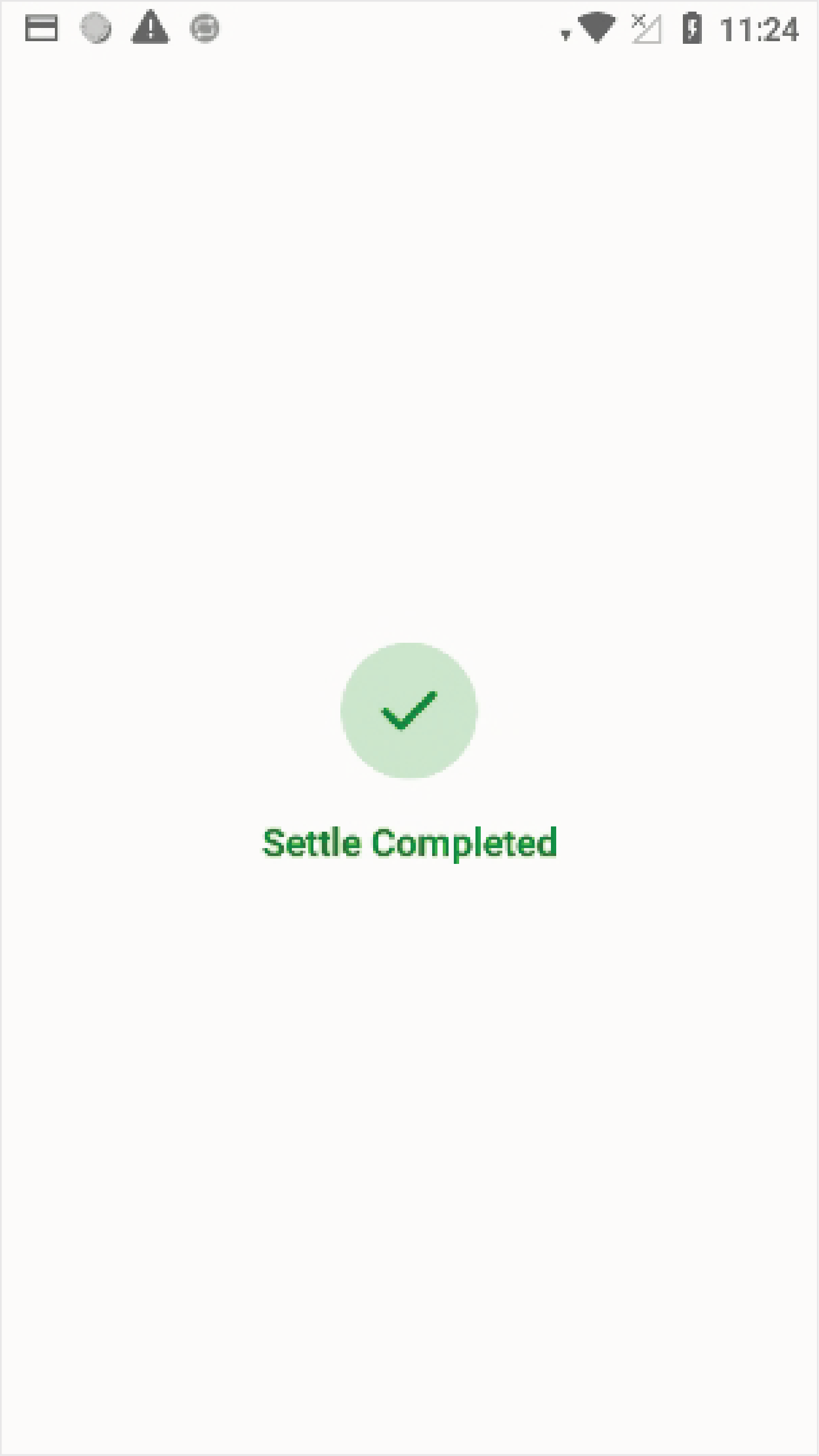
Finally, the terminal will confirm if the
settlement was completed successfully.